Saturday, August 27, 2011

JLabel Positions

Program Description:

The Java program below is a JLabel demonstration that shows different JLabel positions.

Output:
Code:

/**
 * File: jlablePositions.java
 * Tiltle: JLabel Positions
 * Author: http://java-program-sample.blogspot.com/
 */

//Java Extension Packages
import javax.swing.*;
//Java Core Packages
import java.awt.*;

public class jlablePositions extends JFrame {

	//Setting up GUI
	public jlablePositions() {
		
	//Setting up the Title of the Window
	super("JLabel Positions");

	//Set Size of the Window (WIDTH, HEIGHT)
	setSize(350,200);

	//Exit Property of the Frame of Window
	setDefaultCloseOperation(JFrame.EXIT_ON_CLOSE);

	//Constructing JLabel with different positions
	JLabel trailing = new JLabel("TRAILING POSITION",JLabel.TRAILING);
	JLabel left = new JLabel("LEFT POSITION",JLabel.LEFT);
	JLabel right = new JLabel("RIGHT POSITION",JLabel.RIGHT);
	JLabel center = new JLabel("CENTER POSITION",JLabel.CENTER);
	JLabel leading = new JLabel("LEADING POSITION",JLabel.LEADING);
	
	//Setting up the container ready for the components to be added
	Container pane = getContentPane();

	//Setting the position of the JLabel
	GridLayout flo = new GridLayout(5,1);

	//Adding the Layout and JLabel in the container
	pane.setLayout(flo);
	pane.add(trailing);
	pane.add(left);
	pane.add(right);
	pane.add(center);
	pane.add(leading);
	setContentPane(pane);
	setVisible(true);
	}
	
	//Main Method
	public static void main(String[] args) {
	jlablePositions jls = new jlablePositions();
	}
}

Important Part of the Program:

//Constructing JLabel with different positions
	JLabel trailing = new JLabel("TRAILING POSITION",JLabel.TRAILING);
	JLabel left = new JLabel("LEFT POSITION",JLabel.LEFT);
	JLabel right = new JLabel("RIGHT POSITION",JLabel.RIGHT);
	JLabel center = new JLabel("CENTER POSITION",JLabel.CENTER);
	JLabel leading = new JLabel("LEADING POSITION",JLabel.LEADING);

Arithmetic Operation using JOptionPane

Program Description:

The program below is a simple java code arithmetic operation using JButton as arithmetic operator selector and JOptionPane as user input. It is also capable of catching number format error like putting non-integer numbers.

Output:


Code:

/**
 * File: arithmeticOperationJOptionPane.java
 * Tiltle: Arithmetic Operation using JOptionPane
 * Author: http://java-program-sample.blogspot.com/
 */

//Java Core Package
import javax.swing.*;
//Java Extension Package
import java.awt.*;
import java.awt.event.*;

public class arithmeticOperationJOptionPane extends JFrame {
	
	//Initializing JButton and String operation as the label of each JButton
	private JButton buttons[];
	private String operation[] = {"Addition [+]","Subtraction [-]","Multiplication [x]","Division [/]"};

	//Setting up GUI
    public arithmeticOperationJOptionPane() {
    	
    	//Setting up the Title of the Window
    	super("Arithmetic Operation using JOptionPane");

    	//Set Size of the Window (WIDTH, HEIGHT)
    	setSize(320,120);

    	//Exit Property of the Window
    	setDefaultCloseOperation(JFrame.EXIT_ON_CLOSE);
    	
    	//Constructing JButton with a array size of 4
    	buttons = new JButton[4];
    	
    	//Setting up the container ready for the components to be added.
    	Container pane = getContentPane();
    	setContentPane(pane);

    	//Setting up the container layout
    	GridLayout grid = new GridLayout(2,2);
    	pane.setLayout(grid);
    	
    	//Constructing all 4 JButtons using "for loop" and add them in the container
    	for(int count=0; count<buttons.length; count++) {
    		buttons[count] = new JButton(operation[count]);
    		pane.add(buttons[count]);
    	}
		
		//Implemeting Even-Listener on JButton button[0] which is addition
		buttons[0].addActionListener(
		new ActionListener() {
			
			//Handle JButton event if it is clicked
			public void actionPerformed(ActionEvent event) {
				try { //fetch an error using "try-catch" function.
				
				//Initializing important variables for operation
				String input1, input2;
				int num1, num2, result;
				
				//Making two JOptionPane inputs
				input1 = JOptionPane.showInputDialog("Please Input First Number: ");
				input2 = JOptionPane.showInputDialog("Please Input Second Number: ");
				
				//Converting the inputs to integer in order to do the Arithmetic operation by parsing the inputs.
				num1 = Integer.parseInt(input1);
				num2 = Integer.parseInt(input2);
				
				//Processing Arithmetic Operation
				result = num1 + num2;
				
				//Display the result using JOptionPane
				JOptionPane.showMessageDialog(null,result,"Result:",JOptionPane.INFORMATION_MESSAGE);
				} catch (NumberFormatException e){ //Catch the error if the user inputs a non-integer value
				
						//Display the error
						JOptionPane.showMessageDialog(null, "Please Input a Integer","Error",JOptionPane.ERROR_MESSAGE);
				}
			}
		}
		);
		
		//Implemeting Even-Listener on JButton button[1] which is subtraction
		buttons[1].addActionListener(
		new ActionListener() {
			
			//Handle JButton event if it is clicked
			public void actionPerformed(ActionEvent event) {
				try {
				String input1, input2;
				int num1, num2, result;
				
				input1 = JOptionPane.showInputDialog("Please Input First Number: ");
				input2 = JOptionPane.showInputDialog("Please Input Second Number: ");
				
				num1 = Integer.parseInt(input1);
				num2 = Integer.parseInt(input2);
				
				result = num1 - num2;
				
				JOptionPane.showMessageDialog(null,result,"Result:",JOptionPane.INFORMATION_MESSAGE);
				} catch (NumberFormatException e){
						JOptionPane.showMessageDialog(null, "Please Input a Integer","Error",JOptionPane.ERROR_MESSAGE);

				}
			}
		}
		);
		
		//Implemeting Even-Listener on JButton button[2] which is multiplication
		buttons[2].addActionListener(
		new ActionListener() {
			
			//Handle JButton event if it is clicked
			public void actionPerformed(ActionEvent event) {
				try {
				String input1, input2;
				int num1, num2, result;
				
				input1 = JOptionPane.showInputDialog("Please Input First Number: ");
				input2 = JOptionPane.showInputDialog("Please Input Second Number: ");
				
				num1 = Integer.parseInt(input1);
				num2 = Integer.parseInt(input2);
				
				result = num1 * num2;
				
				JOptionPane.showMessageDialog(null,result,"Result:",JOptionPane.INFORMATION_MESSAGE);
				} catch (NumberFormatException e){
						JOptionPane.showMessageDialog(null, "Please Input a Integer","Error",JOptionPane.ERROR_MESSAGE);

				}
			}
		}
		);
		
		//Implemeting Even-Listener on JButton button[3] which is division
		buttons[3].addActionListener(
		new ActionListener() {
			
			//Handle JButton event if it is clicked
			public void actionPerformed(ActionEvent event) {
				try {
				String input1, input2;
				int num1, num2, result;
				
				input1 = JOptionPane.showInputDialog("Please Input First Number: ");
				input2 = JOptionPane.showInputDialog("Please Input Second Number: ");
				
				num1 = Integer.parseInt(input1);
				num2 = Integer.parseInt(input2);
				
				result = num1 / num2;
				
				JOptionPane.showMessageDialog(null,result,"Result:",JOptionPane.INFORMATION_MESSAGE);
				} catch (NumberFormatException e){
						JOptionPane.showMessageDialog(null, "Please Input a Integer","Error",JOptionPane.ERROR_MESSAGE);

				}
			}
		}
		);
		
		buttons[0].setMnemonic('A');
		buttons[1].setMnemonic('S');
		buttons[2].setMnemonic('M');
		buttons[3].setMnemonic('D');
		
    	/**Set all the Components Visible.
    	 * If it is set to "false", the components in the container will not be visible.
    	 */
    	setVisible(true);
    	setResizable(false); //Fix window height and width
    }
    
	//Main Method
    public static void main (String[] args) {
    	arithmeticOperationJOptionPane pjtf = new arithmeticOperationJOptionPane();
	}
}

Important Part of the Program:

//Constructing all 4 JButtons using "for loop" and add them in the container
    	for(int count=0; count<buttons.length; count++) {
    		buttons[count] = new JButton(operation[count]);
    		pane.add(buttons[count]);
    	}
		
		//Implemeting Even-Listener on JButton button[0] which is addition
		buttons[0].addActionListener(
		new ActionListener() {
			
			//Handle JButton event if it is clicked
			public void actionPerformed(ActionEvent event) {
				try { //fetch an error using "try-catch" function.
				
				//Initializing important variables for operation
				String input1, input2;
				int num1, num2, result;
				
				//Making two JOptionPane inputs
				input1 = JOptionPane.showInputDialog("Please Input First Number: ");
				input2 = JOptionPane.showInputDialog("Please Input Second Number: ");
				
				//Converting the inputs to integer in order to do the Arithmetic operation by parsing the inputs.
				num1 = Integer.parseInt(input1);
				num2 = Integer.parseInt(input2);
				
				//Processing Arithmetic Operation
				result = num1 + num2;
				
				//Display the result using JOptionPane
				JOptionPane.showMessageDialog(null,result,"Result:",JOptionPane.INFORMATION_MESSAGE);
				} catch (NumberFormatException e){ //Catch the error if the user inputs a non-integer value
				
						//Display the error
						JOptionPane.showMessageDialog(null, "Please Input a Integer","Error",JOptionPane.ERROR_MESSAGE);
				}
			}
		}
		);
		
		//Implemeting Even-Listener on JButton button[1] which is subtraction
		buttons[1].addActionListener(
		new ActionListener() {
			
			//Handle JButton event if it is clicked
			public void actionPerformed(ActionEvent event) {
				try {
				String input1, input2;
				int num1, num2, result;
				
				input1 = JOptionPane.showInputDialog("Please Input First Number: ");
				input2 = JOptionPane.showInputDialog("Please Input Second Number: ");
				
				num1 = Integer.parseInt(input1);
				num2 = Integer.parseInt(input2);
				
				result = num1 - num2;
				
				JOptionPane.showMessageDialog(null,result,"Result:",JOptionPane.INFORMATION_MESSAGE);
				} catch (NumberFormatException e){
						JOptionPane.showMessageDialog(null, "Please Input a Integer","Error",JOptionPane.ERROR_MESSAGE);

				}
			}
		}
		);
		
		//Implemeting Even-Listener on JButton button[2] which is multiplication
		buttons[2].addActionListener(
		new ActionListener() {
			
			//Handle JButton event if it is clicked
			public void actionPerformed(ActionEvent event) {
				try {
				String input1, input2;
				int num1, num2, result;
				
				input1 = JOptionPane.showInputDialog("Please Input First Number: ");
				input2 = JOptionPane.showInputDialog("Please Input Second Number: ");
				
				num1 = Integer.parseInt(input1);
				num2 = Integer.parseInt(input2);
				
				result = num1 * num2;
				
				JOptionPane.showMessageDialog(null,result,"Result:",JOptionPane.INFORMATION_MESSAGE);
				} catch (NumberFormatException e){
						JOptionPane.showMessageDialog(null, "Please Input a Integer","Error",JOptionPane.ERROR_MESSAGE);

				}
			}
		}
		);
		
		//Implemeting Even-Listener on JButton button[3] which is division
		buttons[3].addActionListener(
		new ActionListener() {
			
			//Handle JButton event if it is clicked
			public void actionPerformed(ActionEvent event) {
				try {
				String input1, input2;
				int num1, num2, result;
				
				input1 = JOptionPane.showInputDialog("Please Input First Number: ");
				input2 = JOptionPane.showInputDialog("Please Input Second Number: ");
				
				num1 = Integer.parseInt(input1);
				num2 = Integer.parseInt(input2);
				
				result = num1 / num2;
				
				JOptionPane.showMessageDialog(null,result,"Result:",JOptionPane.INFORMATION_MESSAGE);
				} catch (NumberFormatException e){
						JOptionPane.showMessageDialog(null, "Please Input a Integer","Error",JOptionPane.ERROR_MESSAGE);

				}
			}
		}
		);

Thursday, August 25, 2011

Display Image Using JList

Program Description:

The program below is a Java Program JList demonstration that allows you to display image in a JPanel by clicking or selecting an item in a JList. Each item has designated image which is controlled by an array in line 19-21. To understand more, see the "Important Part of the Program" section and look at line 19-21 and see how it worked.

Output:

Code:

/**
 * File: displayImageUsingJList.java
 * Tiltle: Display Image Using JList
 * Author: http://java-program-sample.blogspot.com/
 */

//Java Core Package
import javax.swing.*;
import javax.swing.event.*;
//Java Extension Package
import java.awt.*;

public class displayImageUsingJList extends JFrame {
	
	//Initializing JList, JPanel, JLabel, String classes and names and the class Icon
	private JList list;
	private JPanel p1,p2;
	private JLabel image;
	private String names[] = {"Orcs","Mage","Dwarf","Warrior","Elf"};
	private String classes[] = {"orcs.jpg","mage.jpg","dwarf.jpg","warrior.jpg","elf.jpg"};
	private Icon graphics[] = {new ImageIcon(classes[0]),new ImageIcon(classes[1]),new ImageIcon(classes[2]),new ImageIcon(classes[3]),new ImageIcon(classes[4])};

	//Setting up GUI
    public displayImageUsingJList() {
    	
    	//Setting up the Title of the Window
    	super("Display Image Using JList");

    	//Set Size of the Window (WIDTH, LENGTH)
    	setSize(540,290);

    	//Exit Property of the Window
    	setDefaultCloseOperation(JFrame.EXIT_ON_CLOSE);
    	
    	//Constructing JLabel which is going to be used to display images
    	image = new JLabel("Image Display Here");
		
		//Constructing JList and its property
		list = new JList(names);
		list.setVisibleRowCount(4);
		list.setFixedCellHeight(30);
		list.setFixedCellWidth(235);
		list.setSelectionMode(ListSelectionModel.SINGLE_SELECTION);
		
		//Constructing JPanel with border
    	p1 = new JPanel();
    	p1.setBorder(BorderFactory.createTitledBorder("Select Image: "));
    	p1.add(new JScrollPane(list)); //Adding JList in JPanel 1 with JScrollPane that automatically creates Horizontal and Vertical Scroll bar
    	
    	//Constructing JPanel 2 with border
    	p2 = new JPanel();
    	p2.setBorder(BorderFactory.createTitledBorder("Image Preview: "));
    	p2.add(image); //Adding JLabel image in JPanel 2 where the images are to be displayed

    	//Setting up the container ready for the components to be added.
    	Container pane = getContentPane();
    	setContentPane(pane);

		//Setting up the container layout
    	GridLayout grid = new GridLayout(1,2);
    	pane.setLayout(grid);
    	
    	//Set up event handler on JList
    	list.addListSelectionListener(
    		
    		//Handle JList event if selected index is click
    		new ListSelectionListener() {
    			public void valueChanged(ListSelectionEvent event) {
    				
    				image.setText(null); //set the label to null ready for the image to be displayed
    				image.setIcon(graphics[list.getSelectedIndex()]); //display the selected image
    			}
    		});
    	
    	//Adding JPanel 1 and 2 to the container
    	pane.add(p1);
    	pane.add(p2);

    	/**Set all the Components Visible.
    	 * If it is set to "false", the components in the container will not be visible.
    	 */
    	setVisible(true);
    }
    
	//Main Method
    public static void main (String[] args) {
    	displayImageUsingJList diujl = new displayImageUsingJList();
	}
}

Important Part of the Program:

//Set up event handler on JList
    	list.addListSelectionListener(
    		
    		//Handle JList event if selected index is click
    		new ListSelectionListener() {
    			public void valueChanged(ListSelectionEvent event) {
    				
    				image.setText(null); //set the label to null ready for the image to be displayed
    				image.setIcon(graphics[list.getSelectedIndex()]); //display the selected image
    			}
    		});

Adding JPanel Inside Another JPanel

Program Description:

The program below is a Java Code, a simple demonstration on how add JPanel inside another JPanel which is very useful in making a complex program layout along the way. This technique can make you add as many JPanel you want inside another JPanel.

Output:
Code:

/**
 * File: jpanelInsideJPanel.java
 * Tiltle: Adding JPanel Inside Another JPanel
 * Author: http://java-program-sample.blogspot.com/
 */

//Java Core Package
import javax.swing.*;
//Java Extension Package
import java.awt.*;

public class jpanelInsideJPanel extends JFrame {
	
	//Initializing JPanels
	private JPanel mainPanel, subPanel1, subPanel2, subPanel3, subPanel4;

	//Setting up GUI
    public jpanelInsideJPanel(){

    	//Setting up the Title of the Window
    	super("Adding JPanel Inside Another JPanel");

    	//Set Size of the Window (WIDTH, HEIGHT)
    	setSize(350,250);

    	//Exit Property of the Window
    	setDefaultCloseOperation(JFrame.EXIT_ON_CLOSE);
		
		//Constructing Main JPanel with GridLayout of 1 row and 2 column
    	mainPanel = new JPanel();
    	mainPanel.setBorder(BorderFactory.createTitledBorder("Main Panel"));
    	mainPanel.setLayout(new GridLayout(1,2));
    	
    	//Constructing JPanel 1 and 2 with GridLayout of 1 row and 1 column
    	subPanel1 = new JPanel();
    	subPanel1.setBorder(BorderFactory.createTitledBorder("Sub Panel 1"));
    	subPanel1.setLayout(new GridLayout(1,1));
    	subPanel2 = new JPanel();
    	subPanel2.setBorder(BorderFactory.createTitledBorder("Sub Panel 2"));
    	subPanel2.setLayout(new GridLayout(1,1));
    	
    	//Constructing JPanel 3 and 4
    	subPanel3 = new JPanel();
    	subPanel3.setBorder(BorderFactory.createTitledBorder("Sub Panel 3"));
    	subPanel4 = new JPanel();
    	subPanel4.setBorder(BorderFactory.createTitledBorder("Sub Panel 4"));
    	
    	//Adding JPanel 3 to JPanel 1 which means JPanel 3 is inside JPanel 1
    	subPanel1.add(subPanel3);
    	//Adding JPanel 4 to JPanel 2 which means JPanel 4 is inside JPanel 2
    	subPanel2.add(subPanel4);
    	
    	//Adding JPanel 1 and 2 to main JPanel
    	mainPanel.add(subPanel1);
    	mainPanel.add(subPanel2);

    	//Setting up the container ready for the components to be added.
    	Container pane = getContentPane();
    	setContentPane(pane);
		
		//Adding the main JPanel to the container
    	pane.add(mainPanel);

    	/**Set all the Components Visible.
    	 * If it is set to "false", the components in the container will not be visible.
    	 */
    	setVisible(true);
    }
    
	//Main Method
    public static void main (String[] args) {
    	jpanelInsideJPanel jp = new jpanelInsideJPanel();
	}
}

Important Part of the Program:

//Constructing Main JPanel with GridLayout of 1 row and 2 column
    	mainPanel = new JPanel();
    	mainPanel.setBorder(BorderFactory.createTitledBorder("Main Panel"));
    	mainPanel.setLayout(new GridLayout(1,2));
    	
    	//Constructing JPanel 1 and 2 with GridLayout of 1 row and 1 column
    	subPanel1 = new JPanel();
    	subPanel1.setBorder(BorderFactory.createTitledBorder("Sub Panel 1"));
    	subPanel1.setLayout(new GridLayout(1,1));
    	subPanel2 = new JPanel();
    	subPanel2.setBorder(BorderFactory.createTitledBorder("Sub Panel 2"));
    	subPanel2.setLayout(new GridLayout(1,1));
    	
    	//Constructing JPanel 3 and 4
    	subPanel3 = new JPanel();
    	subPanel3.setBorder(BorderFactory.createTitledBorder("Sub Panel 3"));
    	subPanel4 = new JPanel();
    	subPanel4.setBorder(BorderFactory.createTitledBorder("Sub Panel 4"));
    	
    	//Adding JPanel 3 to JPanel 1 which means JPanel 3 is inside JPanel 1
    	subPanel1.add(subPanel3);
    	//Adding JPanel 4 to JPanel 2 which means JPanel 4 is inside JPanel 2
    	subPanel2.add(subPanel4);
    	
    	//Adding JPanel 1 and 2 to main JPanel
    	mainPanel.add(subPanel1);
    	mainPanel.add(subPanel2);

Thursday, August 18, 2011

Display Image to another window using JRadioButton

Program Description:

The Java Program below is an answer to the question I read from one of the comments in PlanetCodes. The program demonstrates how to display image to another window using JRadioButton. In this problem, I have created two Java programs the "mainInterface.java" where the JRadioButtons are placed and the "displayInterface.java" which is used to display the images.

Output:

Code:

Main Interface

/**
 * File: mainInterface.java
 * Tiltle: Display Image to another window using JRadioButton
 * Author: http://java-program-sample.blogspot.com
 */

//Java Core Package
import javax.swing.*;
//Java Extension Package
import java.awt.*;
import java.awt.event.*;

public class mainInterface extends JFrame {
	
	//Intializing JPanel, JRadioButton, and the class Icon
	private JRadioButton orc, warrior, mage;
	private JPanel panel;
	private Icon orcsImage, warriorImage, mageImage;
	
	//Calling the class "displayInterface" to link the two java programs
	private displayInterface di;
	
	//Setting up GUI
    public mainInterface() {
    	
    	//Setting up the Title of the Window
    	super("Main Interface");

    	//Set Size of the Window (WIDTH, HEIGHT)
    	setSize(200,200);

    	//Exit Property of the Window
    	setDefaultCloseOperation(JFrame.EXIT_ON_CLOSE);
    	
    	//Constructing the class Icon
    	orcsImage = new ImageIcon("orcs.jpg");
    	warriorImage = new ImageIcon("warrior.jpg");
    	mageImage = new ImageIcon("mage.jpg");
		
		//Constructing JRadioButton
    	orc = new JRadioButton("Orc",false);
    	warrior = new JRadioButton("Warrior",false);
    	mage = new JRadioButton("Mage",false);
    	
    	//Register Events for JRadioButton
    	RadioButtonHandler handler = new RadioButtonHandler();
    	orc.addItemListener(handler);
    	warrior.addItemListener(handler);
    	mage.addItemListener(handler);
    	
    	//Group the Radio Buttons using the class ButtonGroup
    	ButtonGroup group = new ButtonGroup();
    	group.add(orc);
    	group.add(warrior);
    	group.add(mage);
    	
    	//Constructing JPanel
    	panel = new JPanel();
    	panel.setLayout(new GridLayout(3,1)); //Setting layout on JPanel
    	panel.setBorder(BorderFactory.createTitledBorder("Select an Image")); //Create a titled border on JPanel
    	
    	//Adding JRadioButton on JPanel
    	panel.add(orc);
    	panel.add(warrior);
    	panel.add(mage);

    	//Setting up the container ready for the components to be added.
    	Container pane = getContentPane();
    	setContentPane(pane);
		
		//Adding the JPanel in the container
    	pane.add(panel);

    	/**Set all the Components Visible.
    	 * If it is set to "false", the components in the container will not be visible.
    	 */
    	setVisible(true);
    	setResizable(false); //Set the window to a permanent size
    	setLocation(550,200); //Set the window to a specific location (X Axis, Y Axis)
    	
    }
    
	//Main Method
    public static void main (String[] args) {
    	mainInterface mi = new mainInterface();
	}
	
	//Private Inner class to handle radio button event
	public class RadioButtonHandler implements ItemListener {
		
		//handle radio button event
		public void itemStateChanged(ItemEvent event) {
			
			di = new displayInterface(); //Constructing the class "displayInterface" in order to link the two java program
			
			if(event.getSource() == orc) //Checking what radio button is clicked
				if (event.getStateChange() == ItemEvent.SELECTED) //Tracking if the radio button is selected or deselected
				di.image.setIcon(orcsImage); //if it is checked then the image will be displayed from another window
				else
				di.dispose(); //if not then dispose the window where the image is displayed.
				
				/** You have to remember that radio button has two actions, the "SELECTED" and "DESELECTED".
				 *	The reason why I put another "if condition" and the method "dispose()" is to prevent from displaying
				 *	two windows at the same time when you click any of the radio buttons. Without these functions, the radio 
				 *	button will display images everytime it is "selected" or "deselected".
				 */
			
			if(event.getSource() == warrior)
				if (event.getStateChange() == ItemEvent.SELECTED)
				di.image.setIcon(warriorImage);
				else
				di.dispose();
			
			if(event.getSource() == mage)
				if (event.getStateChange() == ItemEvent.SELECTED)
				di.image.setIcon(mageImage);
				else
				di.dispose();
		}
	}
}

Display Interface

/**
 * File: displayInterface.java
 * Tiltle: Display Image to another window using JRadioButton
 * Author: http://java-program-sample.blogspot.com
 */

//Java Core Package
import javax.swing.*;
//Java Extension Package
import java.awt.*;

public class displayInterface extends JFrame {
	
	//Initializing JLabel
	JLabel image;

	//Setting up GUI
    public displayInterface() {
    	
    	//Setting up the Title of the Window
    	super("Display Interface");

    	//Set Size of the Window (WIDTH, HEIGHT)
    	setSize(265,265);

    	//Exit Property of the Window
    	setDefaultCloseOperation(JFrame.DISPOSE_ON_CLOSE);
    	    	
    	//Constructing JLabel
    	image = new JLabel();

    	//Setting up the container ready for the components to be added.
    	Container pane = getContentPane();
    	setContentPane(pane);
		
		//Setting up the container layout
    	FlowLayout flow = new FlowLayout(FlowLayout.CENTER);
    	pane.setLayout(flow);
    	
    	//Adding JLabel in the container
    	pane.add(image);

    	/**Set all the Components Visible.
    	 * If it is set to "false", the components in the container will not be visible.
    	 */
    	setVisible(true);
    	setResizable(false); //Set the window to a permanent size
    	setLocation(285,200); //Set the window to a specific location (X Axis, Y Axis)
    }
    
	//Main Method
    public static void main (String[] args) {
    	displayInterface di = new displayInterface();
	}
}

Required Image(s):


Basic Arithmetic Operation using JRadioButton, JTextField, and JButton

Program Description:

The program below is a java code, a progject that demonstrates basic arithmetic operations using JTextField, JRadioButton, and JButton. This is a revised code from the blog PlaneCodes which I try to make the codes more understandable by putting comments and making it more organized.

The program can detect if there is no arithmetic operator selected. The program only accepts integer numbers and it will detect if the user puts double or float or string. The program can also recognize if the JTextFields are empty.

Output:
Code:

/**
 * File: basicArithmeticOperation.java
 * Tiltle: Basic Arithmetic Operation using JRadioButton, JTextField, and JButton
 * Author: http://java-program-sample.blogspot.com
 */

//Java Core Package
import javax.swing.*;
//Java Extension Package
import java.awt.*;
import java.awt.event.*;

public class basicArithmeticOperation extends JFrame {
	
	//Initializing JButton, JPanel, JRadioButton, JTextField, and the class ButtonGroup
	private JPanel panel1, panel2;
	private JRadioButton addition, multiplication, subtraction, division;
	private JTextField input1, input2;
	private JButton answer, reset;
	private ButtonGroup group;
	

	//Setting up GUI
    public basicArithmeticOperation() {
    	
    	//Setting up the Title of the Window
    	super("Basic Arithmetic Operation: +,-,*,/");

    	//Set Size of the Window (WIDTH, LENGTH)
    	setSize(475,100);

    	//Exit Property of the Window
    	setDefaultCloseOperation(JFrame.EXIT_ON_CLOSE);
    	
    	//Constructing JRadioButton
    	addition = new JRadioButton("Addition[+]",false);
    	multiplication = new JRadioButton("Multiplication[x]",false);
    	subtraction = new JRadioButton("Subtraction[-]",false);
    	division = new JRadioButton("Division[/]",false);
		
		//Constructing JPanel 1
		panel1 = new JPanel();
		panel1.setLayout(new GridLayout(1,4)); //setting layout on JPanel 1
		
		//Adding JRadioButton in JPanel
		panel1.add(addition);
		panel1.add(multiplication);
		panel1.add(subtraction);
		panel1.add(division);
		
		//Constructing the class ButtonGroup
		group = new ButtonGroup();
		
		//Group the four radio button using the class ButtonGroup
		group.add(addition);
		group.add(multiplication);
		group.add(subtraction);
		group.add(division);		
		
		//Constructing JPanel 2
		panel2 = new JPanel();
    	panel2.setLayout(new GridLayout(1,4)); //setting layout on JPanel 2
    	
    	//Constructing JTextField input1 and input2 with a size of 20
    	input1 = new JTextField(20);
    	input2 = new JTextField(20);
    	
    	//Constructing JButton
    	answer = new JButton("Show Answer");
    	reset = new JButton("Reset");
    	
    	//Adding JButton and JTextField in JPanel 2
    	panel2.add(input1);
    	panel2.add(input2);
    	panel2.add(answer);
    	panel2.add(reset);

    	//Setting up the container ready for the components to be added.
    	Container pane = getContentPane();
    	setContentPane(pane);
    	
    	GridLayout grid = new GridLayout(2,1);
    	pane.setLayout(grid);
    	
    	//Implemeting Even-Listener on JButton copy
		answer.addActionListener(
		new ActionListener() {
			
			//Handle JButton event if it is clicked
			public void actionPerformed(ActionEvent event) {
				
				//If no arithmetic operator selected, a pop-up message will appear.
				if (addition.isSelected() == false && multiplication.isSelected() == false && subtraction.isSelected() == false && division.isSelected() == false) {
						JOptionPane.showMessageDialog(null, "Please Select an Arithmetic Operator","Error",JOptionPane.ERROR_MESSAGE);
				}
				
				if(addition.isSelected()==true){	//if "addition" radio button is selected
					try {	//fetch an error using "try-catch" function.
					int a = Integer.parseInt(input1.getText()); //Convert JTextField input1 to integer by parsing and pass it to a variable "a" ready for arithmetic processing.
					int b = Integer.parseInt(input2.getText()); //Convert JTextField input2 to integer by parsing and pass it to a variable "b" ready for arithmetic processing.
					int ans = a+b; //Process the two inputs using addition.
					JOptionPane.showMessageDialog(null, "The Answer is: "+ans,"Answer:",JOptionPane.INFORMATION_MESSAGE); //Display the answer using JOptionPane
					} catch (NumberFormatException e){ //Catch the error if the user inputs a non-integer or number
						JOptionPane.showMessageDialog(null, "Please Input a Integer","Error",JOptionPane.ERROR_MESSAGE); //Display the catched error using JOptionPane
					} //end of try-catch function
				} //end of "if" condition
				
				if(multiplication.isSelected()==true){
					try {
					int a = Integer.parseInt(input1.getText());
					int b = Integer.parseInt(input2.getText());
					int ans = a*b;
					JOptionPane.showMessageDialog(null, "The Answer is: "+ans,"Answer:",JOptionPane.INFORMATION_MESSAGE);
					} catch (NumberFormatException e){
						JOptionPane.showMessageDialog(null, "Please Input a Integer","Error",JOptionPane.ERROR_MESSAGE);
					}

				}
				
				if(subtraction.isSelected()==true){
					try {
					int a = Integer.parseInt(input1.getText());
					int b = Integer.parseInt(input2.getText());
					int ans = a-b;
					JOptionPane.showMessageDialog(null, "The Answer is: "+ans,"Answer:",JOptionPane.INFORMATION_MESSAGE);
					} catch (NumberFormatException e){
						JOptionPane.showMessageDialog(null, "Please Input a Integer","Error",JOptionPane.ERROR_MESSAGE);
					}

				}
				
				if(division.isSelected()==true){
					try {
					int a = Integer.parseInt(input1.getText());
					int b = Integer.parseInt(input2.getText());
					int ans = a/b;
					JOptionPane.showMessageDialog(null, "The Answer is: "+ans,"Answer:",JOptionPane.INFORMATION_MESSAGE);
					} catch (NumberFormatException e){
						JOptionPane.showMessageDialog(null, "Please Input a Integer","Error",JOptionPane.ERROR_MESSAGE);
					}
				}
			}
		}
		);
		
		//Implemeting Even-Listener on JButton reset
		reset.addActionListener(
		new ActionListener() {
			
			//Handle JButton event if it is clicked
			public void actionPerformed(ActionEvent event) {
				
				input1.setText(null); //Empty JTextField input1 ready for the next input
				input2.setText(null); //Empty JTextField input2 ready for the next input
			}
		}
		);
		
		//Adding the two panels in the container
    	pane.add(panel1);
    	pane.add(panel2);

    	/**Set all the Components Visible.
    	 * If it is set to "false", the components in the container will not be visible.
    	 */
    	setVisible(true);
    	setResizable(false);
    }
    
	//Main Method
    public static void main (String[] args) {
    	basicArithmeticOperation bao = new basicArithmeticOperation();
	}
}

Wednesday, August 17, 2011

Copy Selected Text From JTextArea to JTextField

Program Description:

The program below is a java code that lets you copy the selected text you want from JTextArea to JTextField by just highlighting the text or string you want.

Output:
Code:

/**
 * File: copyJTextAreaSelectedText.java
 * Tiltle: Copy Selected Text From JTextArea to JTextField
 * Author: http://java-program-sample.blogspot.com
 */

//Java Core Package
import javax.swing.*;
//Java Extension Package
import java.awt.*;
import java.awt.event.*;

public class copyJTextAreaSelectedText extends JFrame {
	
	//Initializing JTextArea, JButton, and JTextField
	private JTextArea txtArea;
	private JButton copy;
	private JTextField display;

	//Setting up GUI
    public copyJTextAreaSelectedText() {
    	
    	//Setting up the Title of the Window
    	super("Copy Selected Text From JTextArea to JTextField");

    	//Set Size of the Window (WIDTH, HEIGHT)
    	setSize(380,255);

    	//Exit Property of the Window
    	setDefaultCloseOperation(JFrame.EXIT_ON_CLOSE);
    	   	
    	//Constructing JTextArea, JButton, and JTextField
    	txtArea = new JTextArea("Type the Text you want here. . . .", 10,31);
    	copy = new JButton("Copy the Selected Text >>");
    	display = new JTextField(32);
    	
    	//JTextArea Property
    	txtArea.setLineWrap(true); //Disable the Horizontal Scrollbar
    	
    	//Constructing a JScrollPane for JTextArea's Horizontal and Vertical Scroll Bar
    	JScrollPane scroller = new JScrollPane(txtArea, JScrollPane.VERTICAL_SCROLLBAR_ALWAYS, JScrollPane.HORIZONTAL_SCROLLBAR_NEVER);
    	
    	//Setting up the container ready for the components to be added.
    	Container pane = getContentPane();
    	setContentPane(pane);

    	//Setting up the container layout
    	FlowLayout flow = new FlowLayout(FlowLayout.CENTER);
    	pane.setLayout(flow);
    	
    	//Implemeting Even-Listener on JButton copy
		copy.addActionListener(
		new ActionListener() {
			
			//Handle JButton event if it is clicked
			public void actionPerformed(ActionEvent event) {
				
				//This will display the selected text from JTextArea to JTextField by highlighting the text or string you want to copy.
				display.setText(txtArea.getSelectedText());
			}
		}
		);

		//Adding the JScrollPane to the Container with JTextArea on it
		//Adding JButton and JTextField to the container
		pane.add(scroller);
		pane.add(copy);
		pane.add(display);
		
    	/**Set all the Components Visible.
    	 * If it is set to "false", the components in the container will not be visible.
    	 */
    	setVisible(true);
    }
    
	//Main Method
    public static void main (String[] args) {
    	copyJTextAreaSelectedText pjtf = new copyJTextAreaSelectedText();
	}
}

Important Part of the Program:

//Implemeting Even-Listener on JButton copy
		copy.addActionListener(
		new ActionListener() {
			
			//Handle JButton event if it is clicked
			public void actionPerformed(ActionEvent event) {
				
				//This will display the selected text from JTextArea to JTextField by highlighting the text or string you want to copy.
				display.setText(txtArea.getSelectedText());
			}
		}
		);

Wednesday, August 10, 2011

How to Program a JTextArea

Output:
Code:

/**
 * File: programJTextArea.java
 * Tiltle: How to Program a JTextArea
 * Author: http://java-program-sample.blogspot.com
 */

//Java Core Package
import javax.swing.*;
//Java Extension Package
import java.awt.*;

public class programJTextArea extends JFrame {
	
	//Initializing JTextArea
	private JTextArea txtArea;

	//Setting up GUI
    public programJTextArea() {
    	
    	//Setting up the Title of the Window
    	super("How to Program a JTextArea");

    	//Set Size of the Window (WIDTH, LENGTH)
    	setSize(290,357);

    	//Exit Property of the Window
    	setDefaultCloseOperation(JFrame.EXIT_ON_CLOSE);
    	   	
    	//Constructing JTextArea
    	txtArea = new JTextArea();
    	
    	//Constructing a JScrollPane for JTextArea's Horizontal and Vertical Scroll Bar
    	JScrollPane scroller = new JScrollPane(txtArea, JScrollPane.VERTICAL_SCROLLBAR_ALWAYS, JScrollPane.HORIZONTAL_SCROLLBAR_ALWAYS);
    	
    	//Setting up the container ready for the components to be added.
    	Container pane = getContentPane();
    	setContentPane(pane);

    	//Setting up the container layout
    	GridLayout grid = new GridLayout(1,1);
    	pane.setLayout(grid);

		//Adding the JScrollPane to the Container with JTextArea on it
		pane.add(scroller);
		
    	/**Set all the Components Visible.
    	 * If it is set to "false", the components in the container will not be visible.
    	 */
    	setVisible(true);
    }
    
	//Main Method
    public static void main (String[] args) {
    	programJTextArea pjtf = new programJTextArea();
	}
}

Important Part of the Program:

	//Constructing JTextArea
    	JTextArea txtArea = new JTextArea();
    	
    	//Constructing a JScrollPane for JTextArea's Horizontal and Vertical Scroll Bar
    	JScrollPane scroller = new JScrollPane(txtArea, JScrollPane.VERTICAL_SCROLLBAR_ALWAYS, JScrollPane.HORIZONTAL_SCROLLBAR_ALWAYS);

Simple Image Slide show using JButton

Program Description:

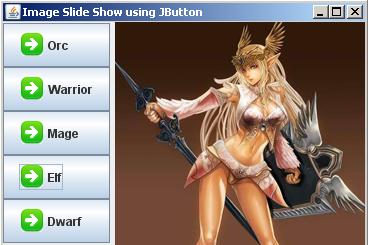
The program below is a simple java code, a slideshow using JButton to change the images. This also demonstrates two things:

1. How to set the label to image.
2. How to align the JButton icons and labels in uniform because by default the icons and the labels are aligned in the center.

Output:
Code:

//Simple Image Slide show using JButton
//by: http://java-program-sample.blogspot.com
//File: imageSlideShowJbutton.java

//Java Extension Packages
import javax.swing.*;
//Java Core Packages
import java.awt.*;
import java.awt.event.*;

public class imageSlideShowJbutton extends JFrame {

	//Initializing Components
	private JButton b1,b2,b3,b4,b5;
	private JPanel panel, panel2;
	private JLabel images;
	private Icon arrow, orcs, warrior, mage, elf, dwarf;

	//Setting up GUI
	public imageSlideShowJbutton() {
	//Title of the Frame or Window
	super("Image Slide Show using JButton");

	//Size of the Frame or Window
	setSize(370,250);

	//Exit Property of the Frame of Window
	setDefaultCloseOperation(JFrame.EXIT_ON_CLOSE);

	images = new JLabel("Waiting for Image");

	//Constructing Icon class
	arrow = new ImageIcon("arrow.gif");
	orcs = new ImageIcon("orcs.jpg");
	warrior = new ImageIcon("warrior.jpg");
	mage = new ImageIcon("mage.jpg");
	elf = new ImageIcon("elf.jpg");
	dwarf = new ImageIcon("dwarf.jpg");

	//Constructing JPanel
	panel = new JPanel();
	panel2 = new JPanel();

	//Constructing JButton
	b1 = new JButton("Orc",arrow);
	b2 = new JButton("Warrior",arrow);
	b3 = new JButton("Mage",arrow);
	b4 = new JButton("Elf",arrow);
	b5 = new JButton("Dwarf",arrow);

	//Set the Labels of the JButton in uniform alignment
	b1.setHorizontalAlignment(SwingConstants.LEFT);
	b2.setHorizontalAlignment(SwingConstants.LEFT);
	b3.setHorizontalAlignment(SwingConstants.LEFT);
	b4.setHorizontalAlignment(SwingConstants.LEFT);
	b5.setHorizontalAlignment(SwingConstants.LEFT);

	Container pane = getContentPane();

	//Setting the layout for panel
	GridLayout grid = new GridLayout(5,1);

	//Adding Button to JPanel
	panel.setLayout(grid);
	panel.add(b1);
	panel.add(b2);
	panel.add(b3);
	panel.add(b4);
	panel.add(b5);

	//Setting layout for panel2
	GridLayout grid2 = new GridLayout(1,1);

	//Adding layout and label to JPanel2
	panel2.setLayout(grid2);
	panel2.add(images);

	//Add Action on button1
	b1.addActionListener(
		new ActionListener() {
			public void actionPerformed(ActionEvent event) {
				images.setText(null);
				images.setIcon(orcs);
				}
			}
		);

	//Add Action on button2
	b2.addActionListener(
			new ActionListener() {
				public void actionPerformed(ActionEvent event) {
					images.setText(null);
					images.setIcon(warrior);
					}
				}
		);

	//Add Action on button3
	b3.addActionListener(
		new ActionListener() {
			public void actionPerformed(ActionEvent event) {
				images.setText(null);
				images.setIcon(mage);
				}
			}
		);

	//Add Action on button4
	b4.addActionListener(
		new ActionListener() {
			public void actionPerformed(ActionEvent event) {
				images.setText(null);
				images.setIcon(elf);
				}
			}
		);

	//Add Action on button5
	b5.addActionListener(
		new ActionListener() {
			public void actionPerformed(ActionEvent event) {
				images.setText(null);
				images.setIcon(dwarf);
				}
			}
		);

	//Add the panel and panel2 in the container or JFrame
	pane.add(panel, BorderLayout.WEST);
	pane.add(panel2, BorderLayout.EAST);

	setContentPane(pane);
	setVisible(true);
	}

	public static void main(String[] args) {
	imageSlideShowJbutton issjb = new imageSlideShowJbutton();
	}
}

Required Image(s):


JButton Borders

Output:
Code:

/**
 * File: jbuttonBoders.java
 * Tiltle: JButton Borders
 * Author: http://java-program-sample.blogspot.com
 */

//Java Core Package
import javax.swing.*;
//Java Extension Package
import java.awt.*;

public class jbuttonBoders extends JFrame {
	
	//Initializing JButton and JPanel
	private JButton button[];
	private JPanel panel;

	//Setting up GUI
    public jbuttonBoders() {
    	
    	//Setting up the Title of the Window
    	super("JButton Border");

    	//Set Size of the Window (WIDTH, HEIGHT)
    	setSize(220,190);

    	//Exit Property of the Window
    	setDefaultCloseOperation(JFrame.EXIT_ON_CLOSE);
    	
    	//Constructing JButton with an array of 12
    	button = new JButton[12];
    	
    	//Constructing JPanel with a FlowLayout CENTER Position
    	panel = new JPanel();
    	panel.setLayout(new FlowLayout(FlowLayout.CENTER));

    	//Constructing all 12 JButtons using "for loop"
    	for(int count=0; count<button.length; count++) {
    		button[count] = new JButton("Button "+(count+1));
    		panel.add(button[count]);
    	}
    	
    	//Setting Different Borders on each JButton
    	button[0].setBorder(BorderFactory.createLineBorder(Color.blue)); // Simple Line Border
    	button[1].setBorder(BorderFactory.createLineBorder(Color.red, 5)); // Line Border + Thickness of the Border
    	button[2].setBorder(BorderFactory.createBevelBorder(1)); // Inner Bevel Border
    	button[3].setBorder(BorderFactory.createBevelBorder(0)); // Outer Bevel Border
    	button[4].setBorder(BorderFactory.createBevelBorder(1, Color.red, Color.blue)); // Two Colors Inner Bevel
    	button[5].setBorder(BorderFactory.createBevelBorder(0, Color.green, Color.orange)); // Two Colors Outer Bevel
    	button[6].setBorder(BorderFactory.createBevelBorder(1, Color.green, Color.orange, Color.red, Color.blue)); //Four Colors Inner Bevel
    	button[7].setBorder(BorderFactory.createBevelBorder(0, Color.green, Color.orange, Color.red, Color.blue)); //Four Colors Outer Bevel
    	button[8].setBorder(BorderFactory.createEmptyBorder(5,10,5,50)); // Empty Border (Upper Space, Left Space, Bottom Space, Right Space)
    	button[9].setBorder(BorderFactory.createEtchedBorder(0)); //Raised Border Line
    	button[10].setBorder(BorderFactory.createEtchedBorder(1)); //
    	button[11].setBorder(BorderFactory.createTitledBorder("My Titled Border")); // Titled Border
    	
    	/** The Borders shown above are the basic borders that we commonly used.
    	 *  There are still lots of Border Styles available so all you have to do is to discover
    	 *  and have some experiment using all the available borders. I recommend you use JCreator Pro
    	 *  if want to know more about different border styles and learn how to implement them.
    	 */

    	//Setting up the container ready for the components to be added.
    	Container pane = getContentPane();
    	setContentPane(pane);

    	//Adding the JPanel to the container
    	pane.add(panel);

    	/**Set all the Components Visible.
    	 * If it is set to "false", the components in the container will not be visible.
    	 */
    	setVisible(true);
    }
    
	//Main Method
    public static void main (String[] args) {
    	jbuttonBoders jbb = new jbuttonBoders();
	}
}

Important Part of the Program: 

//Setting Different Borders on each JButton
    	button[0].setBorder(BorderFactory.createLineBorder(Color.blue)); // Simple Line Border
    	button[1].setBorder(BorderFactory.createLineBorder(Color.red, 5)); // Line Border + Thickness of the Border
    	button[2].setBorder(BorderFactory.createBevelBorder(1)); // Inner Bevel Border
    	button[3].setBorder(BorderFactory.createBevelBorder(0)); // Outer Bevel Border
    	button[4].setBorder(BorderFactory.createBevelBorder(1, Color.red, Color.blue)); // Two Colors Inner Bevel
    	button[5].setBorder(BorderFactory.createBevelBorder(0, Color.green, Color.orange)); // Two Colors Outer Bevel
    	button[6].setBorder(BorderFactory.createBevelBorder(1, Color.green, Color.orange, Color.red, Color.blue)); //Four Colors Inner Bevel
    	button[7].setBorder(BorderFactory.createBevelBorder(0, Color.green, Color.orange, Color.red, Color.blue)); //Four Colors Outer Bevel
    	button[8].setBorder(BorderFactory.createEmptyBorder(5,10,5,50)); // Empty Border (Upper Space, Left Space, Bottom Space, Right Space)
    	button[9].setBorder(BorderFactory.createEtchedBorder(0)); //Raised Border Line
    	button[10].setBorder(BorderFactory.createEtchedBorder(1)); //
    	button[11].setBorder(BorderFactory.createTitledBorder("My Titled Border")); // Titled Border

Add Event Listener on JButton

Output:
Code:

/**
 * File: jbuttonAddEvent.java
 * Tiltle: Add Event Listener on JButton
 * Author: http://java-program-sample.blogspot.com/
 */

//Java Core Package
import javax.swing.*;
//Java Extension Package
import java.awt.*;
import java.awt.event.*;

public class jbuttonAddEvent extends JFrame {
	
	//Initializing JButton
	private JButton button;

	//Setting up GUI
    public jbuttonAddEvent() {
    	
    	//Setting up the Title of the Window
    	super("Add Event Listener on JButton");

    	//Set Size of the Window (WIDTH, LENGTH)
    	setSize(300,100);

    	//Exit Property of the Window
    	setDefaultCloseOperation(JFrame.EXIT_ON_CLOSE);

    	//Constructing JButton
    	button = new JButton("Click Me for my First Event");

    	//Setting up the container ready for the components to be added.
    	Container pane = getContentPane();
    	setContentPane(pane);
    	
    	//Setting up the container layout
    	FlowLayout flow = new FlowLayout(FlowLayout.CENTER);
    	pane.setLayout(flow);
    	
    	//Implemeting Even-Listener on JButton using ActionListener
		button.addActionListener(
		new ActionListener() {
			
			//Handle JButton event if Enter key is pressed or if mouse is clicked.
			public void actionPerformed(ActionEvent event) {
				
				//Message to be displayed after the button is pressed or clicked.
				String message = "Event Listener Successfully Implemented";
				
				//Display the message using JOptionPane if the Event is successfully implemented.
				JOptionPane.showMessageDialog(null, message,"Event",JOptionPane.INFORMATION_MESSAGE);
			}
		}
		);

    	//Adding the JButton component to the container
    	pane.add(button);

    	/**Set all the Components Visible.
    	 * If it is set to "false", the components in the container will not be visible.
    	 */
    	setVisible(true);
    }
    
	//Main Method
    public static void main (String[] args) {
    	jbuttonAddEvent jbe = new jbuttonAddEvent();
	}
}

Important Part of the Program:

//Implemeting Even-Listener on JButton using ActionListener
		button.addActionListener(
		new ActionListener() {
			
			//Handle JButton event if Enter key is pressed or if mouse is clicked.
			public void actionPerformed(ActionEvent event) {
				
				//Message to be displayed after the button is pressed or clicked.
				String message = "Event Listener Successfully Implemented";
				
				//Display the message using JOptionPane if the Event is successfully implemented.
				JOptionPane.showMessageDialog(null, message,"Event",JOptionPane.INFORMATION_MESSAGE);
			}
		}
		);

Add Icon on JButton

Output:
Code:

/**
 * File: jbuttonIcon.java
 * Tiltle: Add Icon on JButton
 * Author: http://java-program-sample.blogspot.com
 */

//Java Core Package
import javax.swing.*;
//Java Extension Package
import java.awt.*;

public class jbuttonIcon extends JFrame {
	
	//Initializing JButton
	private JButton button;

	//Setting up GUI
    public jbuttonIcon() {
    	
    	//Setting up the Title of the Window
    	super("Add Icon on JButton");

    	//Set Size of the Window (WIDTH, HEIGHT)
    	setSize(250,80);

    	//Exit Property of the Window
    	setDefaultCloseOperation(JFrame.EXIT_ON_CLOSE);
    	
    	//Constructing Icon class for JButton
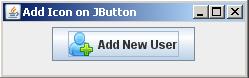
	Icon ico = new ImageIcon("icon.png");

    	//Constructing JButton
    	button = new JButton("Add New User",ico);

    	//Setting up the container ready for the components to be added.
    	Container pane = getContentPane();
    	setContentPane(pane);
    	
    	//Setting up the container layout
    	FlowLayout flow = new FlowLayout(FlowLayout.CENTER);
    	pane.setLayout(flow);

    	//Adding the JButton component to the container
    	pane.add(button);

    	/**Set all the Components Visible.
    	 * If it is set to "false", the components in the container will not be visible.
    	 */
    	setVisible(true);
    }
    
	//Main Method
    public static void main (String[] args) {
    	jbuttonIcon pjb = new jbuttonIcon();
	}
}

Important Part of the Program:

//Constructing Icon class for JButton
Icon ico = new ImageIcon("icon.png");

//Constructing JButton
JButton button = new JButton("Add New User",ico);

Required Image(s):


Add Mnemonic on JButton

Output:
Code:

/**
 * File: jbuttonMnemonic.java
 * Tiltle: Add Mnemonic on JButton
 * Author: http://java-program-sample.blogspot.com/
 */

//Java Core Package
import javax.swing.*;
//Java Extension Package
import java.awt.*;

public class jbuttonMnemonic extends JFrame {
	
	//Initializing JButton
	private JButton button;
	private JLabel info;

	//Setting up GUI
    public jbuttonMnemonic() {
    	
    	//Setting up the Title of the Window
    	super("Add Mnemonic on JButton");

    	//Set Size of the Window (WIDTH, HEIGHT)
    	setSize(250,80);

    	//Exit Property of the Window
    	setDefaultCloseOperation(JFrame.EXIT_ON_CLOSE);

    	//Constructing JButton
    	button = new JButton("My New JButton. Press ALT+N");
    	
    	//Set Mnemonic on JButton. Press ALT+N to click the button.
    	button.setMnemonic('N');

    	//Setting up the container ready for the components to be added.
    	Container pane = getContentPane();
    	setContentPane(pane);
    	
    	//Setting up the container layout
    	FlowLayout flow = new FlowLayout(FlowLayout.CENTER);
    	pane.setLayout(flow);

    	//Adding the JButton component to the container
    	pane.add(button);

    	/**Set all the Components Visible.
    	 * If it is set to "false", the components in the container will not be visible.
    	 */
    	setVisible(true);
    }
    
	//Main Method
    public static void main (String[] args) {
    	jbuttonMnemonic jbnm = new jbuttonMnemonic();
	}
}

Important Part of the Program:

//Constructing JButton
JButton button = new JButton("My New JButton. Press ALT+N");
    	
//Set Mnemonic on JButton. Press ALT+N to click the button.
button.setMnemonic('N');

How to Program a JButton

Output:
Code:

/**
 * File: programJButton.java
 * Tiltle: How to Program a JButton
 * Author: http://java-program-sample.blogspot.com/
 */

//Java Core Package
import javax.swing.*;
//Java Extension Package
import java.awt.*;

public class programJButton extends JFrame {
	
	//Initializing JButton
	private JButton button;

	//Setting up GUI
    public programJButton() {
    	
    	//Setting up the Title of the Window
    	super("How to Program a JButton");

    	//Set Size of the Window (WIDTH, HEIGHT)
    	setSize(250,100);

    	//Exit Property of the Window
    	setDefaultCloseOperation(JFrame.EXIT_ON_CLOSE);

    	//Constructing JButton
    	button = new JButton("My New JButton");

    	//Setting up the container ready for the components to be added.
    	Container pane = getContentPane();
    	setContentPane(pane);
    	
    	//Setting up the container layout
    	FlowLayout flow = new FlowLayout(FlowLayout.CENTER);
    	pane.setLayout(flow);

    	//Adding the JButton component to the container
    	pane.add(button);

    	/**Set all the Components Visible.
    	 * If it is set to "false", the components in the container will not be visible.
    	 */
    	setVisible(true);
    }
    
	//Main Method
    public static void main (String[] args) {
    	programJButton pjb = new programJButton();
	}
}

Important Part of the Program:

//Constructing JButton
JButton button = new JButton("My New JButton");

Add ToolTipText on JButton

Output:
Code:

/**
 * File: toolTipTextOnJButton.java
 * Tiltle: Add ToolTipText on JButton
 * Author: http://java-program-sample.blogspot.com/
 */

//Java Core Package
import javax.swing.*;
//Java Extension Package
import java.awt.*;

public class toolTipTextOnJButton extends JFrame {
	
	//Initializing JButton
	private JButton button;

	//Setting up GUI
    public toolTipTextOnJButton() {
    	
    	//Setting up the Title of the Window
    	super("Add ToolTipText on JButton");

    	//Set Size of the Window (WIDTH, HEIGHT)
    	setSize(250,100);

    	//Exit Property of the Window
    	setDefaultCloseOperation(JFrame.EXIT_ON_CLOSE);

    	//Constructing JButton
    	button = new JButton("Place The Cursor Here...");
    	
    	//Setting or Adding ToolTipText on JButton
    	button.setToolTipText("My First ToolTipText on JButton");

    	//Setting up the container ready for the components to be added.
    	Container pane = getContentPane();
    	setContentPane(pane);
    	
    	//Setting up the container layout
    	FlowLayout flow = new FlowLayout(FlowLayout.CENTER);
    	pane.setLayout(flow);

    	//Adding the JButton component to the container
    	pane.add(button);

    	/**Set all the Components Visible.
    	 * If it is set to "false", the components in the container will not be visible.
    	 */
    	setVisible(true);
    }
    
	//Main Method
    public static void main (String[] args) {
    	toolTipTextOnJButton ttt = new toolTipTextOnJButton();
	}
}

Important Part of the Program:

//Constructing JButton
    	button = new JButton("Place The Cursor Here...");
    	
    	//Setting or Adding ToolTipText on JButton
    	button.setToolTipText("My First ToolTipText on JButton");

Construct a JButton using Array with Event Listener

Output:
Code:

/**
 * File: arrayJButton.java
 * Tiltle: Construct a JButton using Array with Event Listener
 * Author: http://java-program-sample.blogspot.com
 */

//Java Core Package
import javax.swing.*;
//Java Extension Package
import java.awt.*;
import java.awt.event.*;

public class arrayJButton extends JFrame {
	
	//Initializing JButton and JPanel
	private JButton button[];
	private JPanel panel;

	//Setting up GUI
    public arrayJButton() {
    	
    	//Setting up the Title of the Window
    	super("Construct a JButton using Array");

    	//Set Size of the Window (WIDTH, LENGTH)
    	setSize(275,200);

    	//Exit Property of the Window
    	setDefaultCloseOperation(JFrame.EXIT_ON_CLOSE);
    	
    	//Constructing JButton with an array of 5
    	button = new JButton[5];
    	
    	//Constructing JPanel with a GirdLayout of 5 rows and 1 column (Vertical Position)
    	panel = new JPanel();
    	panel.setLayout(new GridLayout(button.length,1));

    	//Constructing all 5 JButtons using "for loop"
    	for(int count=0; count<button.length; count++) {
    		button[count] = new JButton("Button "+(count+1));
    		panel.add(button[count]);
    	}

    	//Setting up the container ready for the components to be added.
    	Container pane = getContentPane();
    	setContentPane(pane);
    	
    	//Implemeting Even-Listener on JButton's reference "button[0]" using ActionListener
		button[0].addActionListener(
		new ActionListener() {
			
			//Handle JButton event if mouse is clicked.
			public void actionPerformed(ActionEvent event) {
				
				//Message to be displayed after the button is clicked.
				String message = "Button 1 Event Listener Successfully Implemented";
				
				//Display the message using JOptionPane if the Event is successfully implemented.
				JOptionPane.showMessageDialog(null, message,"Event",JOptionPane.INFORMATION_MESSAGE);
			}
		}
		);
		
		//Implemeting Even-Listener on JButton's reference "button[1]" using ActionListener
		button[1].addActionListener(
		new ActionListener() {
			
			//Handle JButton event if mouse is clicked.
			public void actionPerformed(ActionEvent event) {
				
				//Message to be displayed after the button is clicked.
				String message = "Button 2 Event Listener Successfully Implemented";
				
				//Display the message using JOptionPane if the Event is successfully implemented.
				JOptionPane.showMessageDialog(null, message,"Event",JOptionPane.INFORMATION_MESSAGE);
			}
		}
		);
		
		//Implemeting Even-Listener on JButton's reference "button[2]" using ActionListener
		button[2].addActionListener(
		new ActionListener() {
			
			//Handle JButton event if mouse is clicked.
			public void actionPerformed(ActionEvent event) {
				
				//Message to be displayed after the button is clicked.
				String message = "Button 3 Event Listener Successfully Implemented";
				
				//Display the message using JOptionPane if the Event is successfully implemented.
				JOptionPane.showMessageDialog(null, message,"Event",JOptionPane.INFORMATION_MESSAGE);
			}
		}
		);
		
		//Implemeting Even-Listener on JButton's reference "button[3]" using ActionListener
		button[3].addActionListener(
		new ActionListener() {
			
			//Handle JButton event if mouse is clicked.
			public void actionPerformed(ActionEvent event) {
				
				//Message to be displayed after the button is clicked.
				String message = "Button 4 Event Listener Successfully Implemented";
				
				//Display the message using JOptionPane if the Event is successfully implemented.
				JOptionPane.showMessageDialog(null, message,"Event",JOptionPane.INFORMATION_MESSAGE);
			}
		}
		);
		
		//Implemeting Even-Listener on JButton's reference "button[4]" using ActionListener
		button[4].addActionListener(
		new ActionListener() {
			
			//Handle JButton event if mouse is clicked.
			public void actionPerformed(ActionEvent event) {
				
				//Message to be displayed after the button is clicked.
				String message = "Button 5 Event Listener Successfully Implemented";
				
				//Display the message using JOptionPane if the Event is successfully implemented.
				JOptionPane.showMessageDialog(null, message,"Event",JOptionPane.INFORMATION_MESSAGE);
			}
		}
		);

    	//Adding the JPanel to the container
    	pane.add(panel);

    	/**Set all the Components Visible.
    	 * If it is set to "false", the components in the container will not be visible.
    	 */
    	setVisible(true);
    }
    
	//Main Method
    public static void main (String[] args) {
    	arrayJButton arjb = new arrayJButton();
	}
}

Important Part of the Program:

//Constructing JButton with an array of 5
    	button = new JButton[5];
    	
    	//Constructing JPanel with a GirdLayout of 5 rows and 1 column (Vertical Position)
    	panel = new JPanel();
    	panel.setLayout(new GridLayout(button.length,1));

    	//Constructing all 5 JButtons using "for loop"
    	for(int count=0; count<button.length; count++) {
    		button[count] = new JButton("Button "+(count+1));
    		panel.add(button[count]);
    	}
//Implemeting Even-Listener on JButton's reference "button[0]" using ActionListener
		button[0].addActionListener(
		new ActionListener() {
			
			//Handle JButton event if mouse is clicked.
			public void actionPerformed(ActionEvent event) {
				
				//Message to be displayed after the button is clicked.
				String message = "Button 1 Event Listener Successfully Implemented";
				
				//Display the message using JOptionPane if the Event is successfully implemented.
				JOptionPane.showMessageDialog(null, message,"Event",JOptionPane.INFORMATION_MESSAGE);
			}
		}
		);
		
		//Implemeting Even-Listener on JButton's reference "button[1]" using ActionListener
		button[1].addActionListener(
		new ActionListener() {
			
			//Handle JButton event if mouse is clicked.
			public void actionPerformed(ActionEvent event) {
				
				//Message to be displayed after the button is clicked.
				String message = "Button 2 Event Listener Successfully Implemented";
				
				//Display the message using JOptionPane if the Event is successfully implemented.
				JOptionPane.showMessageDialog(null, message,"Event",JOptionPane.INFORMATION_MESSAGE);
			}
		}
		);
		
		//Implemeting Even-Listener on JButton's reference "button[2]" using ActionListener
		button[2].addActionListener(
		new ActionListener() {
			
			//Handle JButton event if mouse is clicked.
			public void actionPerformed(ActionEvent event) {
				
				//Message to be displayed after the button is clicked.
				String message = "Button 3 Event Listener Successfully Implemented";
				
				//Display the message using JOptionPane if the Event is successfully implemented.
				JOptionPane.showMessageDialog(null, message,"Event",JOptionPane.INFORMATION_MESSAGE);
			}
		}
		);
		
		//Implemeting Even-Listener on JButton's reference "button[3]" using ActionListener
		button[3].addActionListener(
		new ActionListener() {
			
			//Handle JButton event if mouse is clicked.
			public void actionPerformed(ActionEvent event) {
				
				//Message to be displayed after the button is clicked.
				String message = "Button 4 Event Listener Successfully Implemented";
				
				//Display the message using JOptionPane if the Event is successfully implemented.
				JOptionPane.showMessageDialog(null, message,"Event",JOptionPane.INFORMATION_MESSAGE);
			}
		}
		);
		
		//Implemeting Even-Listener on JButton's reference "button[4]" using ActionListener
		button[4].addActionListener(
		new ActionListener() {
			
			//Handle JButton event if mouse is clicked.
			public void actionPerformed(ActionEvent event) {
				
				//Message to be displayed after the button is clicked.
				String message = "Button 5 Event Listener Successfully Implemented";
				
				//Display the message using JOptionPane if the Event is successfully implemented.
				JOptionPane.showMessageDialog(null, message,"Event",JOptionPane.INFORMATION_MESSAGE);
			}
		}
		);

Change JButton Background and Foreground Color

Output:
Code:

/**
 * File: jbuttonFGAndBGColor.java
 * Tiltle: Change JButton Background and Foreground Color
 * Author: http://java-program-sample.blogspot.com/
 */

//Java Core Package
import javax.swing.*;
//Java Extension Package
import java.awt.*;

public class jbuttonFGAndBGColor extends JFrame {
	
	//Initializing JButton
	private JButton button;

	//Setting up GUI
    public jbuttonFGAndBGColor() {
    	
    	//Setting up the Title of the Window
    	super("Change JButton Background and Foreground Color");

    	//Set Size of the Window (WIDTH, HEIGHT)
    	setSize(250,100);

    	//Exit Property of the Window
    	setDefaultCloseOperation(JFrame.EXIT_ON_CLOSE);

    	//Constructing JButton
    	button = new JButton("My New JButton");
    	
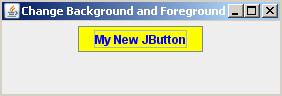
    	//Change JButton Foreground and Background Color
    	button.setForeground(Color.BLUE);
    	button.setBackground(Color.yellow);

    	//Setting up the container ready for the components to be added.
    	Container pane = getContentPane();
    	setContentPane(pane);
    	
    	//Setting up the container layout
    	FlowLayout flow = new FlowLayout(FlowLayout.CENTER);
    	pane.setLayout(flow);

    	//Adding the JButton component to the container
    	pane.add(button);

    	/**Set all the Components Visible.
    	 * If it is set to "false", the components in the container will not be visible.
    	 */
    	setVisible(true);
    }
    
	//Main Method
    public static void main (String[] args) {
    	jbuttonFGAndBGColor jbfbc = new jbuttonFGAndBGColor();
	}
}

Important Part of the Program:

//Constructing JButton
    	button = new JButton("My New JButton");
    	
    	//Change JButton Foreground and Background Color
    	button.setForeground(Color.BLUE);
    	button.setBackground(Color.yellow);

Change JButton Font, Font Style, and Font Size

Output:

Code:

/**
 * File: jbuttonFont.java
 * Tiltle: Change JButton Font, Font Style, and Font Size
 * Author: http://java-program-sample.blogspot.com
 */

//Java Core Package
import javax.swing.*;
//Java Extension Package
import java.awt.*;

public class jbuttonFont extends JFrame {
	
	//Initializing JButton Array, JPanel, Font Class, and Specified JButton String Label
	private JButton button[];
	private JPanel panel;
	String fontName[] = {"Plain","Italic","Bold","Italic-Bold","Arial","Tahoma","Verdana","Courier","SIZE 12","SIZE 14","SIZE 16","SIZE 18"};
	private Font bPlain, bItalic, bBold, bItalicBold, bArial, bTahoma, bVerdana, bCourier, bSize12, bSize14, bSize16, bSize18;

	//Setting up GUI
    public jbuttonFont() {
    	
    	//Setting up the Title of the Window
    	super("Change JButton Fonts");

    	//Set Size of the Window (WIDTH, HEIGHT)
    	setSize(275,400);

    	//Exit Property of the Window
    	setDefaultCloseOperation(JFrame.EXIT_ON_CLOSE);
    	
    	//Constructing JButton with an array of 12
    	button = new JButton[12];
    	
    	//Constructing JPanel with a GirdLayout of 12 rows and 1 column (Vertical Position)
    	panel = new JPanel();
    	panel.setLayout(new GridLayout(button.length,1));
    	
    	//Setting the Font
    	bBold = new Font("Arial", Font.BOLD, 14);
    	bPlain = new Font("Arial", Font.PLAIN, 14);
    	bItalic = new Font("Arial", Font.ITALIC, 14);
    	bItalicBold = new Font("Arial", Font.BOLD+Font.ITALIC, 14);
    	
    	//Setting the Font Style
    	bArial = new Font("Arial", Font.PLAIN, 14);
    	bTahoma = new Font("Tahoma", Font.PLAIN, 14);
    	bVerdana = new Font("Verdana", Font.PLAIN, 14);
    	bCourier = new Font("Courier", Font.PLAIN, 14);
    	
    	//Setting the Font Size
    	bSize12 = new Font("Arial", Font.PLAIN, 12);
    	bSize14 = new Font("Arial", Font.PLAIN, 14);
    	bSize16 = new Font("Arial", Font.PLAIN, 16);
    	bSize18 = new Font("Arial", Font.PLAIN, 18);

    	//Constructing all 12 JButtons using "for loop"
    	for(int count=0; count<button.length; count++) {
    		button[count] = new JButton(fontName[count]);
    		panel.add(button[count]);
    	}
    	
    	//Applying Fonts to each JButtons
    	button[0].setFont(bPlain);
    	button[1].setFont(bItalic);
    	button[2].setFont(bBold);
    	button[3].setFont(bItalicBold);
    	button[4].setFont(bArial);
    	button[5].setFont(bTahoma);
    	button[6].setFont(bVerdana);
    	button[7].setFont(bCourier);
    	button[8].setFont(bSize12);
    	button[9].setFont(bSize14);
    	button[10].setFont(bSize16);
    	button[11].setFont(bSize18);

    	//Setting up the container ready for the components to be added.
    	Container pane = getContentPane();
    	setContentPane(pane);

    	//Adding the JPanel to the container
    	pane.add(panel);

    	/**Set all the Components Visible.
    	 * If it is set to "false", the components in the container will not be visible.
    	 */
    	setVisible(true);
    }
    
	//Main Method
    public static void main (String[] args) {
    	jbuttonFont jbf = new jbuttonFont();
	}
}

Important Part of the Program:

//Setting the Font
    	bBold = new Font("Arial", Font.BOLD, 14);
    	bPlain = new Font("Arial", Font.PLAIN, 14);
    	bItalic = new Font("Arial", Font.ITALIC, 14);
    	bItalicBold = new Font("Arial", Font.BOLD+Font.ITALIC, 14);
    	
    	//Setting the Font Style
    	bArial = new Font("Arial", Font.PLAIN, 14);
    	bTahoma = new Font("Tahoma", Font.PLAIN, 14);
    	bVerdana = new Font("Verdana", Font.PLAIN, 14);
    	bCourier = new Font("Courier", Font.PLAIN, 14);
    	
    	//Setting the Font Size
    	bSize12 = new Font("Arial", Font.PLAIN, 12);
    	bSize14 = new Font("Arial", Font.PLAIN, 14);
    	bSize16 = new Font("Arial", Font.PLAIN, 16);
    	bSize18 = new Font("Arial", Font.PLAIN, 18);

    	//Constructing all 12 JButtons using "for loop"
    	for(int count=0; count<button.length; count++) {
    		button[count] = new JButton(fontName[count]);
    		panel.add(button[count]);
    	}
    	
    	//Applying Fonts to each JButtons
    	button[0].setFont(bPlain);
    	button[1].setFont(bItalic);
    	button[2].setFont(bBold);
    	button[3].setFont(bItalicBold);
    	button[4].setFont(bArial);
    	button[5].setFont(bTahoma);
    	button[6].setFont(bVerdana);
    	button[7].setFont(bCourier);
    	button[8].setFont(bSize12);
    	button[9].setFont(bSize14);
    	button[10].setFont(bSize16);
    	button[11].setFont(bSize18);

Friday, August 5, 2011

Construct a JTextField using Array with Event Listener

Output:
Code:

/**
 * File: arrayJTextField.java
 * Tiltle: Construct a JTextField using Array with Event Listener
 * Author: http://java-program-sample.blogspot.com
 */

//Java Core Package
import javax.swing.*;
//Java Extension Package
import java.awt.*;
import java.awt.event.*;

public class arrayJTextField extends JFrame {
 
 //Initializing JTextField, JPanel, JLabel
 private JTextField field[];
 private JPanel panel;
 private JLabel caption;

 //Setting up GUI
    public arrayJTextField() {
     
     //Setting up the Title of the Window
     super("Construct a JTextField using Array with Event Listener");

     //Set Size of the Window (WIDTH, HEIGHT)
     setSize(400,250);

     //Exit Property of the Window
     setDefaultCloseOperation(JFrame.EXIT_ON_CLOSE);
     
     //Constructing JTextField with an array size of 5
     field = new JTextField[5];
     
     //Constructing JLabel which is used to display text if the action is successfully implemented.
     caption = new JLabel("No Action Yet...");
     caption.setHorizontalAlignment(SwingConstants.CENTER); //Align the JLabel to Center
     
     //Constructing JPanel for group of JTextFields with a GridLayout of 6 rows and 1 column
     panel = new JPanel();
     panel.setLayout(new GridLayout(6,1)); //Set JPanel's Layout
     panel.add(caption); //Adding the JLabel in the JPanel placing at the very top

     //Constructing all 5 JTextFields with a size of 20 using "for loop"
     for(int count=0; count<field.length; count++) {
      field[count] = new JTextField("Field "+(count+1),20);
      panel.add(field[count]);
     }

     //Setting up the container ready for the components to be added.
     Container pane = getContentPane();
     setContentPane(pane);
     
     //Implemeting Even-Listener on JTextField's reference name "field[0]" using ActionListener
  field[0].addActionListener(
  new ActionListener() {
   
   //Handle JTextField event if Enter key is pressed
   public void actionPerformed(ActionEvent event) {
    
    /**Display this message using JLabel if the action
       is Successfully Implemented using the method setText()
    */
    caption.setText("Field 1 Event Listener Successfully Implemented");
   }
  }
  );
  
  //Implemeting Even-Listener on JTextField's reference name "field[1]" using ActionListener
  field[1].addActionListener(
  new ActionListener() {
   
   //Handle JTextField event if Enter key is pressed
   public void actionPerformed(ActionEvent event) {
    
    /**Display this message using JLabel if the action
       is Successfully Implemented using the method setText()
    */
    caption.setText("Field 2 Event Listener Successfully Implemented");
   }
  }
  );
  
  //Implemeting Even-Listener on JTextField's reference name "field[2]" using ActionListener
  field[2].addActionListener(
  new ActionListener() {
   
   //Handle JTextField event if Enter key is pressed
   public void actionPerformed(ActionEvent event) {
    
    /**Display this message using JLabel if the action
       is Successfully Implemented using the method setText()
    */
    caption.setText("Field 3 Event Listener Successfully Implemented");
   }
  }
  );
  
  //Implemeting Even-Listener on JTextField's reference name "field[3]" using ActionListener
  field[3].addActionListener(
  new ActionListener() {
   
   //Handle JTextField event if Enter key is pressed
   public void actionPerformed(ActionEvent event) {
    
    /**Display this message using JLabel if the action
       is Successfully Implemented using the method setText()
    */
    caption.setText("Field 4 Event Listener Successfully Implemented");
   }
  }
  );
  
  //Implemeting Even-Listener on JTextField's reference name "field[4]" using ActionListener
  field[4].addActionListener(
  new ActionListener() {
   
   //Handle JTextField event if Enter key is pressed
   public void actionPerformed(ActionEvent event) {
    
    /**Display this message using JLabel if the action
       is Successfully Implemented using the method setText()
    */
    caption.setText("Field 5 Event Listener Successfully Implemented");
   }
  }
  );

     //Adding the JPanel to the container
     pane.add(panel);

     /**Set all the Components Visible.
      * If it is set to "false", the components in the container will not be visible.
      */
     setVisible(true);
    }
    
 //Main Method
    public static void main (String[] args) {
     arrayJTextField pjtf = new arrayJTextField();
 }
}

Important Part of the Program:

//Constructing JTextField with an array size of 5
JTextField field = new JTextField[5];

//Constructing JPanel for group of JTextFields with a GridLayout of 6 rows and 1 column
     JPanel panel = new JPanel();
     panel.setLayout(new GridLayout(6,1)); //Set JPanel's Layout
     panel.add(caption); //Adding the JLabel in the JPanel placing at the very top

     //Constructing all 5 JTextFields with a size of 20 using "for loop"
     for(int count=0; count<field.length; count++) {
      field[count] = new JTextField("Field "+(count+1),20);
      panel.add(field[count]);
     }

//Implemeting Even-Listener on JTextField's reference name "field[0]" using ActionListener
  field[0].addActionListener(
  new ActionListener() {
   
   //Handle JTextField event if Enter key is pressed
   public void actionPerformed(ActionEvent event) {
    
    /**Display this message using JLabel if the action
       is Successfully Implemented using the method setText()
    */
    caption.setText("Field 1 Event Listener Successfully Implemented");
   }
  }
  );
  
  //Implemeting Even-Listener on JTextField's reference name "field[1]" using ActionListener
  field[1].addActionListener(
  new ActionListener() {
   
   //Handle JTextField event if Enter key is pressed
   public void actionPerformed(ActionEvent event) {
    
    /**Display this message using JLabel if the action
       is Successfully Implemented using the method setText()
    */
    caption.setText("Field 2 Event Listener Successfully Implemented");
   }
  }
  );
  
  //Implemeting Even-Listener on JTextField's reference name "field[2]" using ActionListener
  field[2].addActionListener(
  new ActionListener() {
   
   //Handle JTextField event if Enter key is pressed
   public void actionPerformed(ActionEvent event) {
    
    /**Display this message using JLabel if the action
       is Successfully Implemented using the method setText()
    */
    caption.setText("Field 3 Event Listener Successfully Implemented");
   }
  }
  );
  
  //Implemeting Even-Listener on JTextField's reference name "field[3]" using ActionListener
  field[3].addActionListener(
  new ActionListener() {
   
   //Handle JTextField event if Enter key is pressed
   public void actionPerformed(ActionEvent event) {
    
    /**Display this message using JLabel if the action
       is Successfully Implemented using the method setText()
    */
    caption.setText("Field 4 Event Listener Successfully Implemented");
   }
  }
  );
  
  //Implemeting Even-Listener on JTextField's reference name "field[4]" using ActionListener
  field[4].addActionListener(
  new ActionListener() {
   
   //Handle JTextField event if Enter key is pressed
   public void actionPerformed(ActionEvent event) {
    
    /**Display this message using JLabel if the action
       is Successfully Implemented using the method setText()
    */
    caption.setText("Field 5 Event Listener Successfully Implemented");
   }
  }
  );

     //Adding the JPanel to the container
     pane.add(panel);

 
Design by Free WordPress Themes | Bloggerized by Lasantha - Premium Blogger Themes | Hostgator Discount Code