Thursday, April 19, 2012

JPanel Transparency Demo

Program Description:

I've been surfing in the internet about JPanel transparency and I found out that there are lots of code versions out there on how to make JPanel background color transparent and to tell you, the codes are not so easy to digest which means very bad for beginners.

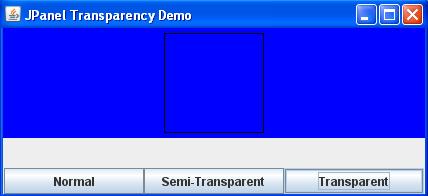
So today I created a very simple code on how to make a semi-transparent JPanel and a total transparent JPanel which is very easy to follow and understand. I always make sure to organize my codes into a uniform format so the errors can easily be tracked, modified, and understand.

Kindly post a comment if there is something in the code you didn't understand.

Output:


Code:

/**
 * File: jpanelTransparency.java
 * Tiltle: JPanel Transparency Demo
 * Author: http://java-program-sample.blogspot.com/
 */

//Java Core Package
import javax.swing.*;
//Java Extension Package
import java.awt.*;
import java.awt.event.*;

public class jpanelTransparency extends JFrame {
 
 //Initializing JComponents
 JPanel testSubject, top, buttonPanel;
 JButton normal, semiTrans, transparent;

 //Setting up GUI
    public jpanelTransparency() {
     
     //Setting up the Title of the Window
     super("JPanel Transparency Demo");

     //Set Size of the Window (WIDTH, HEIGHT)
     setSize(430,200);

     //Exit Property of the Window
     setDefaultCloseOperation(JFrame.EXIT_ON_CLOSE);
  
  //Constructing testSubject JPanel
     testSubject = new JPanel();
     
     //Constructing top JPanel and setting up its background color property
     top = new JPanel();
     top.setBackground(Color.blue);
     
     //Constructing buttonPanel JPanel and setting up its layout property
     buttonPanel = new JPanel();
     buttonPanel.setLayout(new GridLayout(1,3));
     
     //Constructing all 3 JButtons
     normal = new JButton("Normal");
     semiTrans = new JButton("Semi-Transparent");
     transparent = new JButton("Transparent");

     //Setting up the container ready for the components to be added.
     Container pane = getContentPane();
     setContentPane(pane);
     
     //Setting up testSubject JPanel properties
     testSubject.setBorder(BorderFactory.createLineBorder(Color.black,1));
     testSubject.setBackground(Color.WHITE);
     testSubject.setPreferredSize(new Dimension(100,100));
     
     //Adding the "testSubject" JPanel inside "top" JPanel
     top.add(testSubject);
     
     //Adding all 3 JButtons inside buttonPanel JPanel
     buttonPanel.add(normal);
     buttonPanel.add(semiTrans);
     buttonPanel.add(transparent);
     
     //Implemeting Even-Listener on JButton using ActionListener
  normal.addActionListener(
  new ActionListener() {
   
   //Handle JButton event if Enter key is pressed or if mouse is clicked.
   public void actionPerformed(ActionEvent event) {
    
    //Creating a white color as normal background color to our testSubject panel
    Color whiteColor = new Color (255, 255, 255, 255);
    testSubject.setBackground(whiteColor);
   }
  }
  );
  
  //Implemeting Even-Listener on JButton using ActionListener
  semiTrans.addActionListener(
  new ActionListener() {
   
   //Handle JButton event if Enter key is pressed or if mouse is clicked.
   public void actionPerformed(ActionEvent event) {
    
    //Creating a semi-transparent red backgroud color to our testSubject panel
    Color transparentRed = new Color (255, 0, 0, 25);
    testSubject.setBackground(transparentRed);
   }
  }
  );
  
  //Implemeting Even-Listener on JButton using ActionListener
  transparent.addActionListener(
  new ActionListener() {
   
   //Handle JButton event if Enter key is pressed or if mouse is clicked.
   public void actionPerformed(ActionEvent event) {
    
    //Set the background color to empty
    testSubject.setBackground(null);
   }
  }
  );
  
  //Adding JPanel top and buttonPanel to the container
  pane.add(top, BorderLayout.NORTH);
  pane.add(buttonPanel, BorderLayout.SOUTH);
  
     /**Set all the Components Visible.
      * If it is set to "false", the components in the container will not be visible.
      */
     setVisible(true);
    }
    
 //Main Method
    public static void main (String[] args) {
     jpanelTransparency jt = new jpanelTransparency();
 }
}

Important Part of the Program:

//Implemeting Even-Listener on JButton using ActionListener
  semiTrans.addActionListener(
  new ActionListener() {
   
   //Handle JButton event if Enter key is pressed or if mouse is clicked.
   public void actionPerformed(ActionEvent event) {
    
    //Creating a semi-transparent red backgroud color to our testSubject panel
    Color transparentRed = new Color (255, 0, 0, 25);
    testSubject.setBackground(transparentRed);
   }
  }
  );
  
  //Implemeting Even-Listener on JButton using ActionListener
  transparent.addActionListener(
  new ActionListener() {
   
   //Handle JButton event if Enter key is pressed or if mouse is clicked.
   public void actionPerformed(ActionEvent event) {
    
    //Set the background color to empty
    testSubject.setBackground(null);
   }
  }
  );

Specify JPanel size inside a JPanel which size is also being specified

Program Description:

This is another JPanel Demonstration which gives you the idea on how to specify a JPanel size inside another JPanel which size is also being specified. This is very useful if you are handling multiple panels with different sizes and again, layout plays a bigger role in manipulating JPanel size which mean you must know what layout to which panel. Knowing the boundery of your layout can help you create a very nice GUI Design. So I hope this topic can assist you.

Output:
Code:

/**
 * File: jpanelSize2.java
 * Tiltle: Specify JPanel size inside a JPanel which size is also being specified.
 * Author: http://java-program-sample.blogspot.com/
 */

//Java Core Package
import javax.swing.*;
//Java Extension Package
import java.awt.*;

public class jpanelSize2 extends JFrame {
 
 //Constructing JPanel Components
 JPanel outer = new JPanel();
 JPanel inner = new JPanel();

 //Setting up GUI
    public jpanelSize2() {
     
     //Setting up the Title of the Window
     super("Specify JPanel size inside a JPanel");

     //Set Size of the Window (WIDTH, HEIGHT)
     setSize(300,300);

     //Exit Property of the Window
     setDefaultCloseOperation(JFrame.EXIT_ON_CLOSE);     

     //Setting up the container ready for the components to be added.
     Container pane = getContentPane();
     setContentPane(pane);

     //Setting up the container layout
     FlowLayout flow = new FlowLayout(FlowLayout.CENTER);
     pane.setLayout(flow);
     
     //Setting up the property of our inner panel
     inner.setBorder(BorderFactory.createTitledBorder("Inner Panel (220,210) size"));
     inner.setBackground(Color.yellow);
     inner.setPreferredSize(new Dimension(220,210));
     
     //Setting up the property of our outer panel
     outer.setBorder(BorderFactory.createTitledBorder("Outer Panel (270,255) size"));
     outer.setBackground(Color.cyan);
     outer.setPreferredSize(new Dimension(270,255));
     
     //Adding our inner panel inside outer panel
     outer.add(inner);
  
  //Adding outer panel to the container
  pane.add(outer);
  
     /**Set all the Components Visible.
      * If it is set to "false", the components in the container will not be visible.
      */
     setVisible(true);
    }
    
 //Main Method
    public static void main (String[] args) {
     jpanelSize2 js2 = new jpanelSize2();
 }
}

Important Part of the Program:

//Setting up the property of our inner panel
     inner.setBorder(BorderFactory.createTitledBorder("Inner Panel (220,210) size"));
     inner.setBackground(Color.yellow);
     inner.setPreferredSize(new Dimension(220,210));
     
     //Setting up the property of our outer panel
     outer.setBorder(BorderFactory.createTitledBorder("Outer Panel (270,255) size"));
     outer.setBackground(Color.cyan);
     outer.setPreferredSize(new Dimension(270,255));
     
     //Adding our inner panel inside outer panel
     outer.add(inner);

Monday, April 16, 2012

Specify JPanel Size using the Class Dimension and the method setPreferredSize();

Program Description:

This is just a simple and short java program on how to set or customize JPanel size using the class Dimension and setPreferredSize(); method.

The program is very easy to understand and one of the important thing you need to remember is that customizing JPanel size depends on what layout you are going to use. In this program I am using FlowLayout because with FlowLayout, all the JComponents being added to the container are free in terms of length, width, and height meaning you can manipulate its size property easily unlike GridLayout, BoxLayout, CardLayout, and so on where the JComponent are being forced to fit in a certain size meaning JComponent size property manipulation is disabled.

So I hope this simple code can help. 100% runnable.

Output:
Code:

/**
 * File: jpanelSize.java
 * Tiltle: Specify JPanel Size
 * Author: http://java-program-sample.blogspot.com/
 */

//Java Core Package
import javax.swing.*;
//Java Extension Package
import java.awt.*;

public class jpanelSize extends JFrame {
 
 //Initializing JPanel
 JPanel panel1 = new JPanel();
 JPanel panel2 = new JPanel();
 JPanel panel3 = new JPanel();
 JPanel panel4 = new JPanel();

 //Setting up GUI
    public jpanelSize() {
     
     //Setting up the Title of the Window
     super("Specify JPanel Size");

     //Set Size of the Window (WIDTH, HEIGHT)
     setSize(570,250);

     //Exit Property of the Window
     setDefaultCloseOperation(JFrame.EXIT_ON_CLOSE);

     //Setting up the container ready for the components to be added.
     Container pane = getContentPane();
     setContentPane(pane);
     
     //Setting the layout of the container
     pane.setLayout(new FlowLayout(FlowLayout.CENTER));
  
  //Creating different JPanel sizes using the class Dimension and the method setPreferredSize()
     panel1.setBorder(BorderFactory.createLineBorder(Color.black, 1));
     panel1.setPreferredSize(new Dimension(200,200));
     panel1.setBackground(Color.BLUE);
     
     panel2.setBorder(BorderFactory.createLineBorder(Color.black, 1));
     panel2.setPreferredSize(new Dimension(150,150));
     panel2.setBackground(Color.CYAN);
     
     panel3.setBorder(BorderFactory.createLineBorder(Color.black, 1));
     panel3.setPreferredSize(new Dimension(100,100));
     panel3.setBackground(Color.RED);
     
     panel4.setBorder(BorderFactory.createLineBorder(Color.black, 1));
     panel4.setPreferredSize(new Dimension(50,50));
     panel4.setBackground(Color.GREEN);
     
     //Adding all four JPanel in the container
     pane.add(panel1);
     pane.add(panel2);
     pane.add(panel3);
     pane.add(panel4);

     /**Set all the Components Visible.
      * If it is set to "false", the components in the container will not be visible.
      */
     setVisible(true);
    }
    
 //Main Method
    public static void main (String[] args) {
     jpanelSize js = new jpanelSize();
 }
}

Important Part of the Program:

//Creating different JPanel sizes using the class Dimension and the method setPreferredSize()
     panel1.setBorder(BorderFactory.createLineBorder(Color.black, 1));
     panel1.setPreferredSize(new Dimension(200,200));
     panel1.setBackground(Color.BLUE);
     
     panel2.setBorder(BorderFactory.createLineBorder(Color.black, 1));
     panel2.setPreferredSize(new Dimension(150,150));
     panel2.setBackground(Color.CYAN);
     
     panel3.setBorder(BorderFactory.createLineBorder(Color.black, 1));
     panel3.setPreferredSize(new Dimension(100,100));
     panel3.setBackground(Color.RED);
     
     panel4.setBorder(BorderFactory.createLineBorder(Color.black, 1));
     panel4.setPreferredSize(new Dimension(50,50));
     panel4.setBackground(Color.GREEN);

Sunday, April 8, 2012

Creating a simple Progress Bar using JProgressBar

Program Description:

Today, I have created a simple progress bar program in Java using JProgressBar which consists of two separate programs/classes, the Main Program and the Plugin which is the progress bar property. The reason I separate these two classes is to understand the flow of the progress bar property easily which is our main objective in this project. So enjoy and leave some comments.

Output:
Code:

simpleProgressBar.java
/**
 * File: simpleProgressBar.java
 * Tiltle: Creating a Simple Progress Bar
 * Author: http://java-program-sample.blogspot.com/
 */

//Java Core Package
import javax.swing.*;
//Java Extension Package
import java.awt.*;
import java.awt.event.*;

public class simpleProgressBar extends JFrame {
 
 //Constructing JProgressBar and JButton 
 JProgressBar bar = new JProgressBar();
 JButton button = new JButton("Test Progress Bar");
    
 //Setting up GUI
    public simpleProgressBar() {
          
     //Setting up the Title of the Window
     super("Creating a Simple Progress Bar");

     //Set Size of the Window (WIDTH, HEIGHT)
     setSize(350,100);

     //Exit Property of the Window
     setDefaultCloseOperation(JFrame.EXIT_ON_CLOSE);

     //Setting up the container ready for the components to be added.
     Container pane = getContentPane();
     setContentPane(pane);
     
     //Display the progress bar completion percentage label
     bar.setStringPainted(true);

     //Setting up the container layout
     GridLayout grid = new GridLayout(2,1);
     pane.setLayout(grid);
     
     //Adding the progress bar and the button to the container
     pane.add(bar);
     pane.add(button);
     
     //Implemeting Even-Listener on JButton
  button.addActionListener(
  new ActionListener() {
   
   //Handle JButton event if it is clicked
   public void actionPerformed(ActionEvent event) {
    button.setEnabled(false); //Disable the JButton if the progress bar starts the progress
    Thread run = new threadPlugin(bar); //Calling the class "threadPlugin" we created that extends with Thread
    run.start(); //run the thread to start the progress
    }
   }
  );

     /**Set all the Components Visible.
      * If it is set to "false", the components in the container will not be visible.
      */
     setVisible(true);
    }
    
 //Main Method
    public static void main (String[] args) {
     simpleProgressBar spb = new simpleProgressBar();
 }
}

threadPlugin.java
/**
 * File: threadPlugin.java
 * Tiltle: Creating a Simple Progress Bar (PLUGIN)
 * Author: http://java-program-sample.blogspot.com/
 */
 
 //Java Core Package
import javax.swing.*;
//Java Extension Package
import java.awt.*;
 
public class threadPlugin extends Thread {

  int Delay = 100; //Creating a delay or the speed of the progress bar
  JProgressBar pb; //Constructing Progress Bar
  
  //Creating a threadPlugin Method initializing JProgressBar so the Main Program "simpleProgressBar.java"
  //can recognize by the time we call this class for JProgressBar action.
  public  threadPlugin(JProgressBar progressbar) {
   pb = progressbar;
  }
  
  //run Method. This is the area where we can adjust the performance of our progress bar.
  public void run() {
      int minimum = pb.getMinimum(); //initializing minimum value of the progress bar
      int maximum = pb.getMaximum(); //initializing maximum value of the progress bar
      
      //Initializing Progress from its minimum value 0 to its maximum value 100
      for (int i = minimum; i < maximum; i++) { 
        try {
          int value = pb.getValue();
          pb.setValue(value + 1);
          
          //Testing the progress bar if it already reaches to its maximum value
          if (pb.getValue() >= maximum) {
          
          //Test confirmation if it runs perfectly
           JOptionPane.showMessageDialog(null, "Test Successful!","Success!",JOptionPane.INFORMATION_MESSAGE);
          }
           
          Thread.sleep(Delay); //Implementing the speed of the progress bar
        } catch (InterruptedException ignoredException) { //Catch an error if there is any
        }
      }
    }
 }

Wednesday, April 4, 2012

Adding Image above another Image using the class Toolkit and Graphics2D

Program Description:

Today I have created an easy and short Java program on how to add image above another image using the class Toolkit and Graphics2D. This technique is very useful in creating maps, games, applications that involve layers, and so on. There are many java programs out there which is similar to this but some of the programs contain codes and techniques that are hard to understand and some of them doesn't run, so I created this program to give you a more simple and easy way on how to put image above another image.

In this program, you will also learn how to link two programs that have different extensions.

Download: imageAboveAnotherImage.rar

Output:
Code:

Main Program (JFrame)

/**
 * File: imageAboveAnotherImage.java
 * Tiltle: Adding Image Above Another Image
 * Author: http://java-program-sample.blogspot.com/
 */

//Java Core Package
import javax.swing.*;

//Java Extension Package
import java.awt.*;

public class imageAboveAnotherImage extends JFrame {
   
    //Initializing the class pluginExt
    private pluginExt px;

    //Setting up GUI
    public imageAboveAnotherImage() {

        //Setting up the Title of the Window
        super("Adding Image Above Another Image");

        //Set Size of the Window (WIDTH, HEIGHT)
        setSize(455,540);

        //Exit Property of the Window
        setDefaultCloseOperation(JFrame.EXIT_ON_CLOSE);

        //Constructing the class pluginExt
        px = new pluginExt(this);

        //Setting up the container ready for the components to be added.
        Container pane = getContentPane();

        //Adding the class pluginExt in the container so it will be visible when running the program
        pane.add(px);

        //Setting up the content of the container using the class "pluginExt"
        setContentPane(px);

        //Lock the size of the window
        setResizable(false);

        /**Set all the Components Visible.
         * If it is set to "false", the components in the container will not be visible.
         */
        setVisible(true);

    }

    //Main Method
    public static void main(String[] args) {

        imageAboveAnotherImage iaai = new imageAboveAnotherImage();

    }
}

Extension Program (JPanel)

/**
 * File: pluginExt.java
 * Tiltle: Adding Image Above Another Image (class extention)
 * Author: http://java-program-sample.blogspot.com/
 */

//Java Core Package
import javax.swing.*;

//Java Extension Package
import java.awt.*;

public class pluginExt extends JPanel {

    //Initializing the class "imageAboveAnotherImage"
    imageAboveAnotherImage iaai;

    //Initializing the images to be displayed
    Image image1, image2, image3;

    //Setting up GUI
    public pluginExt(imageAboveAnotherImage iaai) {

        //Constructing the class "Toolkit" which will be used to manipulate our images.
        Toolkit kit = Toolkit.getDefaultToolkit();

        //Getting all 3 images we have in the folder
        image1 = kit.getImage("image1.jpg");
        image2 = kit.getImage("image2.jpg");
        image3 = kit.getImage("image3.gif");

    }

    //Manipulate Images with JAVA2D API. . creating a paintComponent method.
     public void paintComponent(Graphics comp) {

         //Constructing the class Graphics2D. Create 2D by casting the "comp" to Graphics2D
        Graphics2D comp2D = (Graphics2D)comp;

        //creating a graphics2d using the images in the folder and place them in a specific coordinates.
            comp2D.drawImage(image1, 0, 0, this);
            comp2D.drawImage(image2, 100, 150, this);
            comp2D.drawImage(image3, 200, 350, this);

     }
}

Tuesday, October 18, 2011

Retrieve Data From Database and Display Using JComboBox

Program Description:

The Java Program below is similar to the topic I created about retrieving data from database and display using JList, the only difference is that this program is using JComboBox instead of JList to display the retrieved data from MS Access Database. See "Important Part of the Program" below to compare and understand the whole java program easily.


Output:
Code:

/**
 * File: retrieveDBUsingJCB.java
 * Tiltle: Retrieve Data From Database and Display Using JComboBox
 * Author: http://java-program-sample.blogspot.com/
 */

//Java Core Package
import javax.swing.*;
//Java Extension Package
import java.awt.*;
import java.awt.event.*;
import java.sql.*;

public class retrieveDBUsingJCB extends JFrame {
 
 //Initializing program components
 private JButton buttons[];
 private JComboBox listBox;
 private JPanel p1,p2;
 private String bLabel[] = {"ID","First Name","Middle Name","Last Name","Age"};
 
 Connection con;
 Statement st;
 ResultSet rs;
 String db;

 //Setting up GUI
    public retrieveDBUsingJCB() {
     
     //Setting up the Title of the Window
     super("Retrieve DB and Display Using JComboBox");

     //Set Size of the Window (WIDTH, HEIGHT)
     setSize(300,200);

     //Exit Property of the Window
     setDefaultCloseOperation(JFrame.EXIT_ON_CLOSE);
          
     //Constructing JButtons and JComboBox
     buttons = new JButton[5];
     listBox = new JComboBox();
     
     //Setting up JComboBox property
     listBox.setMaximumRowCount(5);
  
  //Constructing JPanel 1 and its property
  p1 = new JPanel();
  p1.setBorder(BorderFactory.createTitledBorder("Database: "));
  p1.add(listBox); //Adding JComboBox in JPanel 1
  
  //Constructing JPanel 2 and its property
  p2 = new JPanel();
  p2.setLayout(new GridLayout(5,1));
  p2.setBorder(BorderFactory.createTitledBorder("Display: "));
  
  //Constructing all 5 JButtons using "for loop" and add it in JPanel 2
  for(int count=0; count<buttons.length; count++) {
   buttons[count] = new JButton(bLabel[count]);
   p2.add(buttons[count]);
  }
  
  //Setting up the container ready for the components to be added.
     Container pane = getContentPane();
     setContentPane(pane);

     //Setting up the container layout
     GridLayout grid = new GridLayout(1,2);
     pane.setLayout(grid);
     
     //Creating a connection to MS Access and fetch errors using "try-catch" to check if it is successfully connected or not.
     try {
    Class.forName("sun.jdbc.odbc.JdbcOdbcDriver");
    db = "jdbc:odbc:Driver={Microsoft Access Driver (*.mdb)};DBQ=addItemDB.mdb;";
    con = DriverManager.getConnection(db,"","");
    st = con.createStatement();
    
   } catch (Exception e) {
    JOptionPane.showMessageDialog(null,"Failed to Connect to Database","Error Connection", JOptionPane.WARNING_MESSAGE);
    System.exit(0);
   }
   
  //Implemeting Even-Listener on JButton buttons[0] which is ID
  buttons[0].addActionListener(
  new ActionListener() {
   
   //Handle JButton event if it is clicked
   public void actionPerformed(ActionEvent event) {
    try {
     listBox.removeAllItems();
     //SQL for selecting the table "person" in the Database
     rs=st.executeQuery("select * from person");
     while (rs.next()) {
      //Displaying the field "id" from the table "person" in JComboBox
         listBox.addItem(rs.getString("id"));
     }
     
    } catch (Exception e) {
     System.out.println("Retrieving Data Fail");
    }
   }
  }
  );
  
  //Implemeting Even-Listener on JButton buttons[1] which is First Name
  buttons[1].addActionListener(
  new ActionListener() {
   
   //Handle JButton event if it is clicked
   public void actionPerformed(ActionEvent event) {
    try {
     listBox.removeAllItems();
     //SQL for selecting the table "person" in the Database
     rs=st.executeQuery("select * from person");
     while (rs.next()) {
      //Displaying the field "firstName" from the table "person" in JComboBox
         listBox.addItem(rs.getString("firstName"));
     }
     
    } catch (Exception e) {
     System.out.println("Retrieving Data Fail");
    }
   }
  }
  );
  
  //Implemeting Even-Listener on JButton buttons[2] which is Middle Name
  buttons[2].addActionListener(
  new ActionListener() {
   
   //Handle JButton event if it is clicked
   public void actionPerformed(ActionEvent event) {
    try {
     listBox.removeAllItems();
     //SQL for selecting the table "person" in the Database
     rs=st.executeQuery("select * from person");
     while (rs.next()) {
      //Displaying the field "middleName" from the table "person" in JComboBox
         listBox.addItem(rs.getString("middleName"));
     }
     
    } catch (Exception e) {
     System.out.println("Retrieving Data Fail");
    }
   }
  }
  );
  
  //Implemeting Even-Listener on JButton buttons[3] which is Last Name
  buttons[3].addActionListener(
  new ActionListener() {
   
   //Handle JButton event if it is clicked
   public void actionPerformed(ActionEvent event) {
    try {
     listBox.removeAllItems();
     //SQL for selecting the table "person" in the Database
     rs=st.executeQuery("select * from person");
     while (rs.next()) {
      //Displaying the field "lastName" from the table "person" in JComboBox
         listBox.addItem(rs.getString("familyName"));
     }
     
    } catch (Exception e) {
     System.out.println("Retrieving Data Fail");
    }
   }
  }
  );
  
  //Implemeting Even-Listener on JButton buttons[4] which is Age
  buttons[4].addActionListener(
  new ActionListener() {
   
   //Handle JButton event if it is clicked
   public void actionPerformed(ActionEvent event) {
    try {
     listBox.removeAllItems();
     //SQL for selecting the table "person" in the Database
     rs=st.executeQuery("select * from person");
     while (rs.next()) {
      //Displaying the field "age" from the table "person" in JComboBox
         listBox.addItem(rs.getString("age"));
     }
     
    } catch (Exception e) {
     System.out.println("Retrieving Data Fail");
    }
   }
  }
  );
        
     //Adding components to the container
  pane.add(p1);
  pane.add(p2);
  
     /**Set all the Components Visible.
      * If it is set to "false", the components in the container will not be visible.
      */
     setVisible(true);
     setResizable(false);
    }
    
 //Main Method
    public static void main (String[] args) {
     retrieveDBUsingJCB rdjcb = new retrieveDBUsingJCB();
 }
}

Important Part of the Program:

//Implemeting Even-Listener on JButton buttons[0] which is ID
  buttons[0].addActionListener(
  new ActionListener() {
   
   //Handle JButton event if it is clicked
   public void actionPerformed(ActionEvent event) {
    try {
     listBox.removeAllItems();
     //SQL for selecting the table "person" in the Database
     rs=st.executeQuery("select * from person");
     while (rs.next()) {
      //Displaying the field "id" from the table "person" in JComboBox
         listBox.addItem(rs.getString("id"));
     }
     
    } catch (Exception e) {
     System.out.println("Retrieving Data Fail");
    }
   }
  }
  );
  
  //Implemeting Even-Listener on JButton buttons[1] which is First Name
  buttons[1].addActionListener(
  new ActionListener() {
   
   //Handle JButton event if it is clicked
   public void actionPerformed(ActionEvent event) {
    try {
     listBox.removeAllItems();
     //SQL for selecting the table "person" in the Database
     rs=st.executeQuery("select * from person");
     while (rs.next()) {
      //Displaying the field "firstName" from the table "person" in JComboBox
         listBox.addItem(rs.getString("firstName"));
     }
     
    } catch (Exception e) {
     System.out.println("Retrieving Data Fail");
    }
   }
  }
  );
  
  //Implemeting Even-Listener on JButton buttons[2] which is Middle Name
  buttons[2].addActionListener(
  new ActionListener() {
   
   //Handle JButton event if it is clicked
   public void actionPerformed(ActionEvent event) {
    try {
     listBox.removeAllItems();
     //SQL for selecting the table "person" in the Database
     rs=st.executeQuery("select * from person");
     while (rs.next()) {
      //Displaying the field "middleName" from the table "person" in JComboBox
         listBox.addItem(rs.getString("middleName"));
     }
     
    } catch (Exception e) {
     System.out.println("Retrieving Data Fail");
    }
   }
  }
  );
  
  //Implemeting Even-Listener on JButton buttons[3] which is Last Name
  buttons[3].addActionListener(
  new ActionListener() {
   
   //Handle JButton event if it is clicked
   public void actionPerformed(ActionEvent event) {
    try {
     listBox.removeAllItems();
     //SQL for selecting the table "person" in the Database
     rs=st.executeQuery("select * from person");
     while (rs.next()) {
      //Displaying the field "lastName" from the table "person" in JComboBox
         listBox.addItem(rs.getString("familyName"));
     }
     
    } catch (Exception e) {
     System.out.println("Retrieving Data Fail");
    }
   }
  }
  );
  
  //Implemeting Even-Listener on JButton buttons[4] which is Age
  buttons[4].addActionListener(
  new ActionListener() {
   
   //Handle JButton event if it is clicked
   public void actionPerformed(ActionEvent event) {
    try {
     listBox.removeAllItems();
     //SQL for selecting the table "person" in the Database
     rs=st.executeQuery("select * from person");
     while (rs.next()) {
      //Displaying the field "age" from the table "person" in JComboBox
         listBox.addItem(rs.getString("age"));
     }
     
    } catch (Exception e) {
     System.out.println("Retrieving Data Fail");
    }
   }
  }
  );

Retrieve Data from Database and Display Using JList

Program Description:

The Program below is a Java Code that demonstrates on how to retrieve data from MS Access database and display it using JList. It has five buttons that corresponds to the database fields you want to display in the JList. This technique is commonly used in many programs so I have created a simple and easy to understand java codes in order to understand the flow of the whole program easily. Always refer to "Important Part of the Program".

Download: retrieveDBUsingJList.rar

Output:
Code:

/**
 * File: retrieveDBUsingJList.java
 * Tiltle: Retrieve Database and Display Using JList
 * Author: http://java-program-sample.blogspot.com/
 */

//Java Core Package
import javax.swing.*;
//Java Extension Package
import java.awt.*;
import java.awt.event.*;
import java.sql.*;

public class retrieveDBUsingJList extends JFrame {
 
 //Initializing program components
 private DefaultListModel model;
 private JButton buttons[];
 private JList dbList;
 private JPanel p1,p2;
 private String bLabel[] = {"ID","First Name","Middle Name","Last Name","Age"};
 
 Connection con;
 Statement st;
 ResultSet rs;
 String db;

 //Setting up GUI
    public retrieveDBUsingJList() {
     
     //Setting up the Title of the Window
     super("Retrieve DB and Display Using JList");

     //Set Size of the Window (WIDTH, HEIGHT)
     setSize(300,200);

     //Exit Property of the Window
     setDefaultCloseOperation(JFrame.EXIT_ON_CLOSE);
          
     //Constructing JButtons, JList, and DefaultListModel
     model = new DefaultListModel();
     buttons = new JButton[5];
     dbList = new JList(model);
     
     //Setting up JList property
     dbList.setVisibleRowCount(5);
     dbList.setFixedCellHeight(27);
     dbList.setFixedCellWidth(130);
     dbList.setSelectionMode(ListSelectionModel.SINGLE_SELECTION);
  
  //Constructing JPanel 1 and its property
  p1 = new JPanel();
  p1.setBorder(BorderFactory.createTitledBorder("Database: "));
  p1.add(new JScrollPane(dbList)); //Adding JList in JPanel 1
  
  //Constructing JPanel 2 and its property
  p2 = new JPanel();
  p2.setLayout(new GridLayout(5,1));
  p2.setBorder(BorderFactory.createTitledBorder("Display: "));
  
  //Constructing all 5 JButtons using "for loop" and add it in JPanel 2
  for(int count=0; count<buttons.length; count++) {
   buttons[count] = new JButton(bLabel[count]);
   p2.add(buttons[count]);
  }
  
  //Setting up the container ready for the components to be added.
     Container pane = getContentPane();
     setContentPane(pane);

     //Setting up the container layout
     GridLayout grid = new GridLayout(1,2);
     pane.setLayout(grid);
     
     //Creating a connection to MS Access and fetch errors using "try-catch" to check if it is successfully connected or not.
     try {
    Class.forName("sun.jdbc.odbc.JdbcOdbcDriver");
    db = "jdbc:odbc:Driver={Microsoft Access Driver (*.mdb)};DBQ=addItemDB.mdb;";
    con = DriverManager.getConnection(db,"","");
    st = con.createStatement();  
    
   } catch (Exception e) {
    JOptionPane.showMessageDialog(null,"Failed to Connect to Database","Error Connection", JOptionPane.WARNING_MESSAGE);
    System.exit(0);
   }
   
  //Implemeting Even-Listener on JButton buttons[0] which is ID
  buttons[0].addActionListener(
  new ActionListener() {
   
   //Handle JButton event if it is clicked
   public void actionPerformed(ActionEvent event) {
    try {
     model.clear();
     rs=st.executeQuery("select * from person");
     while (rs.next()) {
         model.addElement(rs.getString("id"));
     }
     
    } catch (Exception e) {
     System.out.println("Retrieving Data Fail");
    }
   }
  }
  );
  
  //Implemeting Even-Listener on JButton buttons[1] which is First Name
  buttons[1].addActionListener(
  new ActionListener() {
   
   //Handle JButton event if it is clicked
   public void actionPerformed(ActionEvent event) {
     try {
     model.clear();
     rs=st.executeQuery("select * from person");
     while (rs.next()) {
         model.addElement(rs.getString("firstName"));
     }
     
    } catch (Exception e) {
     System.out.println("Retrieving Data Fail");
    }
   }
  }
  );
  
  //Implemeting Even-Listener on JButton buttons[2] which is Middle Name
  buttons[2].addActionListener(
  new ActionListener() {
   
   //Handle JButton event if it is clicked
   public void actionPerformed(ActionEvent event) {
     try {
     model.clear();
     rs=st.executeQuery("select * from person");
     while (rs.next()) {
         model.addElement(rs.getString("middleName"));
     }
     
    } catch (Exception e) {
     System.out.println("Retrieving Data Fail");
    }
   }
  }
  );
  
  //Implemeting Even-Listener on JButton buttons[3] which is Last Name
  buttons[3].addActionListener(
  new ActionListener() {
   
   //Handle JButton event if it is clicked
   public void actionPerformed(ActionEvent event) {
     try {
     model.clear();
     rs=st.executeQuery("select * from person");
     while (rs.next()) {
         model.addElement(rs.getString("familyName"));
     }
     
    } catch (Exception e) {
     System.out.println("Retrieving Data Fail");
    }
   }
  }
  );
  
  //Implemeting Even-Listener on JButton buttons[4] which is Age
  buttons[4].addActionListener(
  new ActionListener() {
   
   //Handle JButton event if it is clicked
   public void actionPerformed(ActionEvent event) {
     try {
     model.clear();
     rs=st.executeQuery("select * from person");
     while (rs.next()) {
         model.addElement(rs.getString("age"));
     }
     
    } catch (Exception e) {
     System.out.println("Retrieving Data Fail");
    }
   }
  }
  );
        
     //Adding components to the container
  pane.add(p1);
  pane.add(p2);
  
     /**Set all the Components Visible.
      * If it is set to "false", the components in the container will not be visible.
      */
     setVisible(true);
     setResizable(false);
    }
    
 //Main Method
    public static void main (String[] args) {
     retrieveDBUsingJList rdjl = new retrieveDBUsingJList();
 }
}

Important Part of the Program:

//Implemeting Even-Listener on JButton buttons[0] which is ID
  buttons[0].addActionListener(
  new ActionListener() {
   
   //Handle JButton event if it is clicked
   public void actionPerformed(ActionEvent event) {
    try {
     model.clear();
     rs=st.executeQuery("select * from person");
     while (rs.next()) {
         model.addElement(rs.getString("id"));
     }
     
    } catch (Exception e) {
     System.out.println("Retrieving Data Fail");
    }
   }
  }
  );
  
  //Implemeting Even-Listener on JButton buttons[1] which is First Name
  buttons[1].addActionListener(
  new ActionListener() {
   
   //Handle JButton event if it is clicked
   public void actionPerformed(ActionEvent event) {
     try {
     model.clear();
     rs=st.executeQuery("select * from person");
     while (rs.next()) {
         model.addElement(rs.getString("firstName"));
     }
     
    } catch (Exception e) {
     System.out.println("Retrieving Data Fail");
    }
   }
  }
  );
  
  //Implemeting Even-Listener on JButton buttons[2] which is Middle Name
  buttons[2].addActionListener(
  new ActionListener() {
   
   //Handle JButton event if it is clicked
   public void actionPerformed(ActionEvent event) {
     try {
     model.clear();
     rs=st.executeQuery("select * from person");
     while (rs.next()) {
         model.addElement(rs.getString("middleName"));
     }
     
    } catch (Exception e) {
     System.out.println("Retrieving Data Fail");
    }
   }
  }
  );
  
  //Implemeting Even-Listener on JButton buttons[3] which is Last Name
  buttons[3].addActionListener(
  new ActionListener() {
   
   //Handle JButton event if it is clicked
   public void actionPerformed(ActionEvent event) {
     try {
     model.clear();
     rs=st.executeQuery("select * from person");
     while (rs.next()) {
         model.addElement(rs.getString("familyName"));
     }
     
    } catch (Exception e) {
     System.out.println("Retrieving Data Fail");
    }
   }
  }
  );
  
  //Implemeting Even-Listener on JButton buttons[4] which is Age
  buttons[4].addActionListener(
  new ActionListener() {
   
   //Handle JButton event if it is clicked
   public void actionPerformed(ActionEvent event) {
     try {
     model.clear();
     rs=st.executeQuery("select * from person");
     while (rs.next()) {
         model.addElement(rs.getString("age"));
     }
     
    } catch (Exception e) {
     System.out.println("Retrieving Data Fail");
    }
   }
  }
  );

Sunday, October 9, 2011

Scan Database using First, Last, Next, and Previous Function

Program Description:

The Java Program below is a simple code on how to use the function First, Last, Next, and Previous in scanning data from MS Access Database. I made this program as simple and as short as possible in order to understand easily. It has been tested several times to make sure it runs perfectly. You can download the whole program below including the database to test properly:

Download: scanDatabase.rar

Output:
Code:

/**
 * File: scanDatabase.java
 * Tiltle: Scan Database Using First, Last, Next, Previous
 * Author: http://java-program-sample.blogspot.com/
 */

//Java Core Package
import javax.swing.*;
//Java Extension Package
import java.awt.*;
import java.awt.event.*;
import java.sql.*;

public class scanDatabase extends JFrame {
 
 //Initializing Program Components
 private JTextField inputs[];
 private JButton scan[];
 private String butLabel[] = {"First","Last","Next","Prev"};
 private JLabel labels[];
 private String fldLabel[] = {"ID","First Name: ","Middle Name: ","Family Name: ","Age: "};
 private JPanel p1,p2;
 
 Connection con;
 Statement st;
 ResultSet rs;
 String db;

 //Setting up GUI
    public scanDatabase() {
     
     //Setting up the Title of the Window
     super("Scan Database");

     //Set Size of the Window (WIDTH, HEIGHT)
     setSize(305,160);

     //Exit Property of the Window
     setDefaultCloseOperation(JFrame.EXIT_ON_CLOSE);
  
  //Constructing Program Components
     inputs = new JTextField[5];
     labels = new JLabel[5];
     scan = new JButton[4];
     p1 = new JPanel();
     p1.setLayout(new GridLayout(5,2));
     p2 = new JPanel();
     p2.setLayout(new GridLayout(1,1));

     //Setting up the container ready for the components to be added.
     Container pane = getContentPane();
     setContentPane(pane);
     
     //Creating a connection to MS Access and fetching errors using "try-catch" to check if it is successfully connected or not.
     try {
    Class.forName("sun.jdbc.odbc.JdbcOdbcDriver");
    db = "jdbc:odbc:Driver={Microsoft Access Driver (*.mdb)};DBQ=addItemDB.mdb;";
    con = DriverManager.getConnection(db,"","");
    st = con.createStatement(ResultSet.TYPE_SCROLL_INSENSITIVE,ResultSet.CONCUR_READ_ONLY);
    
    rs=st.executeQuery("select * from person");
    rs.first();
    
    JOptionPane.showMessageDialog(null,"Successfully Connected to Database","Confirmation", JOptionPane.INFORMATION_MESSAGE);
    
   } catch (Exception e) {
    JOptionPane.showMessageDialog(null,"Failed to Connect to Database","Error Connection", JOptionPane.ERROR_MESSAGE);
    System.exit(0);
   }
     
     //Constructing JLabel and JTextField using "for loop" in their desired order
     for(int count=0; count<inputs.length && count<labels.length; count++) {
      labels[count] = new JLabel(fldLabel[count]);
      inputs[count] = new JTextField(30);
      //Adding the JLabel and the JTextFied in JPanel 1
      p1.add(labels[count]);
      p1.add(inputs[count]);
     }
     
     //Constructing JButton using "for loop"
     for(int count=0; count<scan.length; count++) {
      scan[count] = new JButton(butLabel[count]);
      //Adding the JButton in JPanel 2
      p2.add(scan[count]);
     }
     
  //Implemeting Even-Listener on JButton first
  scan[0].addActionListener(
  new ActionListener() {
   
   //Handle JButton event if it is clicked
   public void actionPerformed(ActionEvent event) {
    try {
     
     rs=st.executeQuery("select * from person");
     if (rs.first())
      displayRes();
      
    }catch (Exception e ) {
     System.out.println("Fail to Connect to the Database");
    }
   }
  }
  );
  
  //Implemeting Even-Listener on JButton last
  scan[1].addActionListener(
  new ActionListener() {
   
   //Handle JButton event if it is clicked
   public void actionPerformed(ActionEvent event) {
    try {
     
     rs=st.executeQuery("select * from person");
     if (rs.last())
      displayRes();
      
    }catch (Exception e ) {
     System.out.println("Fail to Connect to the Database");
    }
   }
  }
  );
  
  //Implemeting Even-Listener on JButton next
  scan[2].addActionListener(
  new ActionListener() {
   
   //Handle JButton event if it is clicked
   public void actionPerformed(ActionEvent event) {
    try {
     
     if(rs!=null || (!rs.next()))
      rs.next();
      displayRes();
      
    }catch (Exception e ) {
     System.out.println("You have reached the last Data.");
    }
   }
  }
  );
  
  //Implemeting Even-Listener on JButton last
  scan[3].addActionListener(
  new ActionListener() {
   
   //Handle JButton event if it is clicked
   public void actionPerformed(ActionEvent event) {
    try {
     
     if(rs!=null)
      rs.previous();
      displayRes();
      
    }catch (Exception e ) {
     System.out.println("You have reached the first Data.");
    }
   }
  }
  );
  
  //Adding JPanel 1 and 2 to the container
  pane.add(p1, BorderLayout.NORTH);
  pane.add(p2, BorderLayout.SOUTH);
  
     /**Set all the Components Visible.
      * If it is set to "false", the components in the container will not be visible.
      */
     setVisible(true);
     setResizable(false);
    }
    
    //Creating a method used to retrieve data from database and display in JTextField
    public void displayRes() throws Exception {
     inputs[0].setText(rs.getString(1));
     inputs[1].setText(rs.getString(2));
     inputs[2].setText(rs.getString(3));
     inputs[3].setText(rs.getString(4));
     inputs[4].setText(rs.getString(5));
    }
    
 //Main Method
    public static void main (String[] args) {
     scanDatabase sd = new scanDatabase();
 }
}

Important Part of the Program:

//Implemeting Even-Listener on JButton first
  scan[0].addActionListener(
  new ActionListener() {
   
   //Handle JButton event if it is clicked
   public void actionPerformed(ActionEvent event) {
    try {
     
     rs=st.executeQuery("select * from person");
     if (rs.first())
      displayRes();
      
    }catch (Exception e ) {
     System.out.println("Fail to Connect to the Database");
    }
   }
  }
  );
  
  //Implemeting Even-Listener on JButton last
  scan[1].addActionListener(
  new ActionListener() {
   
   //Handle JButton event if it is clicked
   public void actionPerformed(ActionEvent event) {
    try {
     
     rs=st.executeQuery("select * from person");
     if (rs.last())
      displayRes();
      
    }catch (Exception e ) {
     System.out.println("Fail to Connect to the Database");
    }
   }
  }
  );
  
  //Implemeting Even-Listener on JButton next
  scan[2].addActionListener(
  new ActionListener() {
   
   //Handle JButton event if it is clicked
   public void actionPerformed(ActionEvent event) {
    try {
     
     if(rs!=null || (!rs.next()))
      rs.next();
      displayRes();
      
    }catch (Exception e ) {
     System.out.println("You have reached the last Data.");
    }
   }
  }
  );
  
  //Implemeting Even-Listener on JButton last
  scan[3].addActionListener(
  new ActionListener() {
   
   //Handle JButton event if it is clicked
   public void actionPerformed(ActionEvent event) {
    try {
     
     if(rs!=null)
      rs.previous();
      displayRes();
      
    }catch (Exception e ) {
     System.out.println("You have reached the first Data.");
    }
   }
  }
  );

Saturday, October 8, 2011

Adding Data to the Database using MS Access

Program Description:

The Program below is a very short, easy-to-understand java code that allows the user to add data to the database. The program is capable of detecting connection errors and input errors. You can download the whole program below including the database to properly test:

Download: addItemToDatabase.rar

Output:
Code:

/**
 * File: addItemToDatabase.java
 * Tiltle: Adding Data to the Database
 * Author: http://java-program-sample.blogspot.com/
 */

//Java Core Package
import javax.swing.*;
//Java Extension Package
import java.awt.*;
import java.awt.event.*;
import java.sql.*;

public class addItemToDatabase extends JFrame {
 
 //Initializing Components
 private JTextField inputs[];
 private JButton add, reset;
 private JLabel labels[];
 private String fldLabel[] = {"First Name: ","Middle Name: ","Family Name: ","Age: "};
 private JPanel p1;
 
 Connection con;
 Statement st;
 ResultSet rs;
 String db;

 //Setting up GUI
    public addItemToDatabase() {
     
     //Setting up the Title of the Window
     super("Adding Data to the Database");

     //Set Size of the Window (WIDTH, HEIGHT)
     setSize(300,180);

     //Exit Property of the Window
     setDefaultCloseOperation(JFrame.EXIT_ON_CLOSE);
  
  //Constructing Components
     inputs = new JTextField[4];
     labels = new JLabel[4];
     add = new JButton("Add");
     reset = new JButton("Reset");
     p1 = new JPanel();
     
     //Setting Layout on JPanel 1 with 5 rows and 2 column
     p1.setLayout(new GridLayout(5,2));

     //Setting up the container ready for the components to be added.
     Container pane = getContentPane();
     setContentPane(pane);

     //Setting up the container layout
     GridLayout grid = new GridLayout(1,1,0,0);
     pane.setLayout(grid);
     
     //Creating a connection to MS Access and fetching errors using "try-catch" to check if it is successfully connected or not.
     try {
    Class.forName("sun.jdbc.odbc.JdbcOdbcDriver");
    db = "jdbc:odbc:Driver={Microsoft Access Driver (*.mdb)};DBQ=addItemDB.mdb;";
    con = DriverManager.getConnection(db,"","");
    st = con.createStatement();  
    
    JOptionPane.showMessageDialog(null,"Successfully Connected to Database","Confirmation", JOptionPane.INFORMATION_MESSAGE);
    
   } catch (Exception e) {
    JOptionPane.showMessageDialog(null,"Failed to Connect to Database","Error Connection", JOptionPane.ERROR_MESSAGE);
    System.exit(0);
   }
     
     //Constructing JLabel and JTextField using "for loop" in their desired order
     for(int count=0; count<inputs.length && count<labels.length; count++) {
      labels[count] = new JLabel(fldLabel[count]);
      inputs[count] = new JTextField(20);
      
      //Adding the JLabel and the JTextFied in JPanel 1
      p1.add(labels[count]);
      p1.add(inputs[count]);
     }
     
     //Implemeting Even-Listener on JButton add
  add.addActionListener(
  new ActionListener() {
   
   //Handle JButton event if it is clicked
   public void actionPerformed(ActionEvent event) {
    
    if (inputs[0].getText().equals("") || inputs[1].getText().equals("") || inputs[2].getText().equals("") || inputs[0].getText() == null || inputs[1].getText() == null || inputs[2].getText() == null)
     JOptionPane.showMessageDialog(null,"Fill up all the Fields","Error Input", JOptionPane.ERROR_MESSAGE);
     
    else
     
    try {
     
     String add = "insert into person (firstName,middleName,familyName,age) values ('"+inputs[0].getText()+"','"+inputs[1].getText()+"','"+inputs[2].getText()+"',"+inputs[3].getText()+")";
     st.execute(add); //Execute the add sql
     
     Integer.parseInt(inputs[3].getText()); //Convert JTextField Age in to INTEGER
     
     JOptionPane.showMessageDialog(null,"Item Successfully Added","Confirmation", JOptionPane.INFORMATION_MESSAGE);
     
    }catch (NumberFormatException e) {
     JOptionPane.showMessageDialog(null,"Please enter an integer on the Field AGE","Error Input", JOptionPane.ERROR_MESSAGE);
    }catch (Exception ei) {
     JOptionPane.showMessageDialog(null,"Failure to Add Item. Please Enter a number on the Field AGE","Error Input", JOptionPane.ERROR_MESSAGE);
    }
   }
  }
  );
  
  //Implemeting Even-Listener on JButton reset
  reset.addActionListener(
  new ActionListener() {
   
   //Handle JButton event if it is clicked
   public void actionPerformed(ActionEvent event) {
    inputs[0].setText(null);
    inputs[1].setText(null);
    inputs[2].setText(null);
    inputs[3].setText(null);
   }
  }
  );
  
  //Adding JButton "add" and "reset" to JPanel 1 after the JLabel and JTextField
  p1.add(add);
  p1.add(reset);
  
  //Adding JPanel 1 to the container
  pane.add(p1);
  
     /**Set all the Components Visible.
      * If it is set to "false", the components in the container will not be visible.
      */
     setVisible(true);
    }
    
 //Main Method
    public static void main (String[] args) {
     addItemToDatabase aid = new addItemToDatabase();
 }
}

Important Part of the Program:

//Implemeting Even-Listener on JButton add
  add.addActionListener(
  new ActionListener() {
   
   //Handle JButton event if it is clicked
   public void actionPerformed(ActionEvent event) {
    
    if (inputs[0].getText().equals("") || inputs[1].getText().equals("") || inputs[2].getText().equals("") || inputs[0].getText() == null || inputs[1].getText() == null || inputs[2].getText() == null)
     JOptionPane.showMessageDialog(null,"Fill up all the Fields","Error Input", JOptionPane.ERROR_MESSAGE);
     
    else
     
    try {
     
     String add = "insert into person (firstName,middleName,familyName,age) values ('"+inputs[0].getText()+"','"+inputs[1].getText()+"','"+inputs[2].getText()+"',"+inputs[3].getText()+")";
     st.execute(add); //Execute the add sql
     
     Integer.parseInt(inputs[3].getText()); //Convert JTextField Age in to INTEGER
     
     JOptionPane.showMessageDialog(null,"Item Successfully Added","Confirmation", JOptionPane.INFORMATION_MESSAGE);
     
    }catch (NumberFormatException e) {
     JOptionPane.showMessageDialog(null,"Please enter an integer on the Field AGE","Error Input", JOptionPane.ERROR_MESSAGE);
    }catch (Exception ei) {
     JOptionPane.showMessageDialog(null,"Failure to Add Item. Please Enter a number on the Field AGE","Error Input", JOptionPane.ERROR_MESSAGE);
    }
   }
  }
  );

Feel free to comment if the program doesn't work or if you have questions about the program. It has been tested many time so it runs perfectly.

Monday, September 26, 2011

Connect to MS Access Database

Program Description:

There are lots of versions of java codes out there demonstrating on how to connect java application to MS Access Database. Now I have created my own, simple, short, and easy to understand java code on how to connect to MS Access. What it does is that if you run the program, it will terminate if the connection to the database fails and if it succeeded a window will appear. To test the program if it is properly connected, just click the "Test Connection" button. The program will again terminate if the test connection fails and if it succeeded, a confirmation message will be stored in the database.

In order the program to work, you have to create a MS Access file with a filename "database", create a table name "Confirm" and in that table, create two fields name "confirm" and "confirm_to". You have to create the MS Access file in the folder where your java program is because of the code

db = "jdbc:odbc:Driver={Microsoft Access Driver (*.mdb)};DBQ=database.mdb;";

which means your program can easily access or connect to the database as long as they are in the same folder.

Output:
Code:

/**
 * File: databaseCon.java
 * Tiltle: Database Connection Using MS Access
 * Author: http://java-program-sample.blogspot.com/
 */

//Java Core Package
import javax.swing.*;
//Java Extension Package
import java.awt.*;
import java.awt.event.*;
import java.sql.*;

public class databaseCon extends JFrame implements ActionListener {
 
 //Initializing components
 private JButton connect;
 private JTextField confirmation;
 Connection con;
 Statement st;
 ResultSet rs;
 String db;

 //Setting up GUI
    public databaseCon() {
     
     //Setting up the Title of the Window
     super("MS Access Connection");

     //Set Size of the Window (WIDTH, HEIGHT)
     setSize(250,95);

     //Exit Property of the Window
     setDefaultCloseOperation(JFrame.EXIT_ON_CLOSE);
  
  //Constructing Components
     connect = new JButton("Test Connection");
     confirmation = new JTextField(20);

     //Setting up the container ready for the components to be added.
     Container pane = getContentPane();
     setContentPane(pane);

     //Setting up the container layout
     FlowLayout flow = new FlowLayout(FlowLayout.CENTER);
     pane.setLayout(flow);
     
     //Creating a connection to MS Access and fetching errors using "try-catch" to check if it is successfully connected or not.
     try {
    Class.forName("sun.jdbc.odbc.JdbcOdbcDriver");
    db = "jdbc:odbc:Driver={Microsoft Access Driver (*.mdb)};DBQ=database.mdb;";
    con = DriverManager.getConnection(db,"","");
    st = con.createStatement();  
    
    confirmation.setText("Successfully Connected to Database");
    
   } catch (Exception e) {
    JOptionPane.showMessageDialog(null,"Failed to Connect to Database","Error Connection", JOptionPane.WARNING_MESSAGE);
    System.exit(0);
   }
   
   //Adding Event Listener to the button "Connect"
     connect.addActionListener(this);
     
     //Adding components to the container
  pane.add(confirmation);
  pane.add(connect);
  
     /**Set all the Components Visible.
      * If it is set to "false", the components in the container will not be visible.
      */
     setVisible(true);
    }
    
    //Creating an event to the JButton "Connect"
    public void actionPerformed(ActionEvent event) {
     
     try {
      if(event.getSource() == connect ) {
       
       //Adding values on the database field "confirm" and "confirm_to"
       String insert = "insert into Confirm (confirm, confirm_to) values ('"+confirmation.getText()+"','"+confirmation.getText()+"')";
    st.execute(insert); //Execute the sql
    
    //This will display if the connection and the insertion of data to the database is successful.
    confirmation.setText("Test Successful");
    
    //Display what is in the database
    rs=st.executeQuery("select * from Confirm");
    while(rs.next()) {
     System.out.println(rs.getString("confirm"));
    }
      }
     }catch(Exception e) {
      JOptionPane.showMessageDialog(null,"Failed to Connect to Database","Error Connection", JOptionPane.WARNING_MESSAGE);
   System.exit(0);
     }
    }
    
 //Main Method
    public static void main (String[] args) {
     databaseCon pjtf = new databaseCon();
 }
}

Important Part of the Program:

//Creating a connection to MS Access and fetching errors using "try-catch" to check if it is successfully connected or not.
     try {
    Class.forName("sun.jdbc.odbc.JdbcOdbcDriver");
    db = "jdbc:odbc:Driver={Microsoft Access Driver (*.mdb)};DBQ=database.mdb;";
    con = DriverManager.getConnection(db,"","");
    st = con.createStatement();  
    
    confirmation.setText("Successfully Connected to Database");
    
   } catch (Exception e) {
    JOptionPane.showMessageDialog(null,"Failed to Connect to Database","Error Connection", JOptionPane.WARNING_MESSAGE);
    System.exit(0);
   }

Sunday, September 11, 2011

Creating a JDesktopPane

Program Description:

One of the interesting and useful part in making Java Program is creating a JDesktopPane which is an MDI (Multiple Document Interface) commonly used in today's applications. It is a main window called parent window that contains other windows called child windows. It is used to manage several open documents that are being processed in parallel. The Java Program below is a short simple code on how to create a JDesktopPane and JInternalFrame.

Output:


Code:

/**
 * File: createJDesktoPane.java
 * Tiltle: Creating a JDesktopPane
 * Author: http://java-program-sample.blogspot.com/
 */

//Java Core Package
import javax.swing.*;
//Java Extension Package
import java.awt.*;
import java.awt.event.*;

public class createJDesktoPane extends JFrame {
 
 //Initializing program components
 private JDesktopPane desktopTest;
 private JLabel labels[];
 private JTextField inputs[];
 private JButton buttons[];
 private String labelName[]={"Enter Name: ","Enter Age: ","Enter Address: ","Enter Mobile#: "};
 private String buttonName[] = {"Open","Save","Exit"};
 private JPanel panel1, panel2;

 //Setting up GUI
    public createJDesktoPane() {
     
     //Setting up the Title of the Window
     super("Creating a JDesktopPane");

     //Set Size of the Window (WIDTH, HEIGHT)
     setSize(600,500);

     //Exit Property of the Window
     setDefaultCloseOperation(JFrame.EXIT_ON_CLOSE);

     JMenuBar bar = new JMenuBar(); //Constructing JMenuBar
     JMenu menu = new JMenu("File"); //Constructing JMenu name "File"
     JMenuItem newFile = new JMenuItem("Add New Data"); //Constructing JMenuItem with "Add New Data" label
     
     menu.add(newFile); //Adding JMenuItem in the JMenu
     bar.add(menu); //Adding JMenu in the JMenuBar
     
  setJMenuBar(bar); //Adding JMenuBar in the container
  
  desktopTest = new JDesktopPane(); //Creating a JDesktopPane
  desktopTest.setBackground(Color.BLACK); //Setting JDesktopPane background color
  
     //Setting up the container ready for the components to be added.
     Container pane = getContentPane();
     setContentPane(pane);
     
     pane.add(desktopTest); //Adding JDesktopPane in the container
     
     //Implemeting Even-Listener on newFile JMenuItem
     newFile.addActionListener(
  new ActionListener() {
   
   //Handle JMenuItem "newFile" event if it is clicked
   public void actionPerformed(ActionEvent e) {
   
   //Constructing an Internal Frame inside JDesktopPane
   JInternalFrame frame = new JInternalFrame(null,true,true,true,true);
   
   Container container = frame.getContentPane(); //Creating a container inside the JInternalFrame
   
   //Constructing JLabel, JButton, and JTextField inside JInternalFrame
   labels = new JLabel[4];
   inputs = new JTextField[4];
   buttons = new JButton[3];
   
   //Creating a JPanel 1 with GridLayout of 4 rows and 2 columns inside JInternalFrame
   panel1 = new JPanel();
   panel1.setLayout(new GridLayout(4,2));
   
   //Constructing JLabel and JTextField using "for loop" and add to JPanel 1
   for(int count=0; count<labels.length && count<inputs.length; count++) {
    labels[count] = new JLabel(labelName[count]);
    inputs[count] = new JTextField(10);
    panel1.add(labels[count]);
    panel1.add(inputs[count]);
   }
   
   //Creating a JPanel 2 with GridLayout of 1 row and 3 columns inside JInternalFrame
   panel2 = new JPanel();
   panel2.setLayout(new GridLayout(1,3));
   
   //Constructing JButton using "for loop" and add to JPanel 2
   for(int count=0; count<buttons.length; count++) {
    buttons[count] = new JButton(buttonName[count]);
    panel2.add(buttons[count]);
   }
   
   //Adding JPanel 1 and 2 to the JInternalFrame container
   container.add(panel1,BorderLayout.NORTH);
   container.add(panel2,BorderLayout.CENTER);
   
   frame.setTitle("Add New Data"); //Set the Title of the JInternalFrame
   frame.setResizable(false); //Lock the size of the JInternalFrame
   frame.setMaximizable(false); //Disable the Maximize function of JInternalFrame
   
   //Set the size of JInternalFrame to the size of its content
   frame.pack();
   
   //Attached the JInternalFrame to JDesktopPane and show it by setting the visible in to "true"
   desktopTest.add(frame);
   frame.setVisible(true);
   }
  }
  );

     /**Set all the Components Visible.
      * If it is set to "false", the components in the container will not be visible.
      */
     setVisible(true);
    }
    
 //Main Method
    public static void main (String[] args) {
     createJDesktoPane dp = new createJDesktoPane();
 }
}

Implementing Event Listener on JMenuItem

Program Description:

Since we already know the basics of JMenuBar, JMenu, and JMenuItem from adding icons, creating Sub-Menus, and combining the three components in to one. We are now going to move on to the event implementation where the menus are going to interact with the user. The Java Program below is a simple code on how to implement and event listener on JMenuItem.

Output:
Code:

/**
 * File: JMenuItemEventListener.java
 * Tiltle: Implementing Event Listener on JMenuItem
 * Author: http://java-program-sample.blogspot.com/
 */

//Java Core Package
import javax.swing.*;
//Java Extension Package
import java.awt.*;
import java.awt.event.*;

public class JMenuItemEventListener extends JFrame {
 
 //Initializing the program Components
 private JMenu fileMenu;
 private JMenuBar menuBar;
 private JMenuItem menuItems[];
 private JMenuItem exit;
 private String items[] = {"New ...","Open ...","Save ..."};
 private char itemMnemonics[] = {'N','O','C','E'};
 private String iconFile[] = {"new.gif","open.gif","save.gif"};
 private Icon icons[];
 private JLabel display;

 //Setting up GUI
    public JMenuItemEventListener() {
     
     //Setting up the Title of the Window
     super("Implementing Event Listener on JMenuItem");

     //Set Size of the Window (WIDTH, HEIGHT)
     setSize(400,200);

     //Exit Property of the Window
     setDefaultCloseOperation(JFrame.EXIT_ON_CLOSE);

  //Constructing JMenu, JMenuBar, JMenuItem, and JLabel
     fileMenu = new JMenu("File");
     menuBar = new JMenuBar();
     menuItems = new JMenuItem[3];
     display = new JLabel("Waiting for Event...", SwingConstants.CENTER); //Display JLabel in the Center
     
     fileMenu.setMnemonic('F'); //Add mnemonic on the JMenu "File"
     menuBar.add(fileMenu); //Adding the JMenu to JMenuBar
     
     //Constructing 3 JMenuItem using "for loop"
     for(int count=0; count<menuItems.length; count++) {
      menuItems[count] = new JMenuItem(items[count],new ImageIcon(iconFile[count])); //Constructing JMenuItem with the Specified String menus and icons
      menuItems[count].setMnemonic(itemMnemonics[count]); //Adding mnemonics on JMenuItem
      fileMenu.add(menuItems[count]); //Add JMenuItem on JMenu
     }
     
     fileMenu.addSeparator(); //Creating a separator to separate exit from New, Open, and Close
     
     exit = new JMenuItem("Exit ..."); //Constructing JMenuItem "Exit"
     exit.setMnemonic('E'); //Set JMenuItem "Exit" Mnemonic
     fileMenu.add(exit); //Adding JMenuItem "Exit" to JMenu
     
     //Setting up the JMenuBar in the container or automtically add JMenuBar in the container
     setJMenuBar(menuBar);
     
     //Setting up the container ready for the components to be added.
     Container pane = getContentPane();
     setContentPane(pane);
     
     //Implementing Event Listener on JMenuItem[0] which is "New"
     menuItems[0].addActionListener(
  new ActionListener() {
   
   //Handle JMenuItem event if mouse is clicked.
   public void actionPerformed(ActionEvent event) {
    //Display this message using JLabel if selected JMenuItem is clicked
    display.setText("New Item Menu is Selected");
   }
  }
  );
  
  //Implementing Event Listener on JMenuItem[1] which is "Open"
  menuItems[1].addActionListener(
  new ActionListener() {
   
   //Handle JMenuItem event if mouse is clicked.
   public void actionPerformed(ActionEvent event) {
    //Display this message using JLabel if selected JMenuItem is clicked
    display.setText("Open Item Menu is Selected");
   }
  }
  );
  
  //Implementing Event Listener on JMenuItem[2] which is "Save"
  menuItems[2].addActionListener(
  new ActionListener() {
   
   //Handle JMenuItem event if mouse is clicked.
   public void actionPerformed(ActionEvent event) {
    //Display this message using JLabel if selected JMenuItem is clicked
    display.setText("Save Item Menu is Selected");
   }
  }
  );
  
  //Implementing Event Listener on JMenuItem exit
  exit.addActionListener(
  new ActionListener() {
   
   //Handle JMenuItem event if mouse is clicked.
   public void actionPerformed(ActionEvent event) {
    
    System.exit(0); //Exit the Application
   }
  }
  );
     
     //Add JLabel display in the container
     pane.add(display, BorderLayout.CENTER);

     /**Set all the Components Visible.
      * If it is set to "false", the components in the container will not be visible.
      */
     setVisible(true);
    }
    
 //Main Method
    public static void main (String[] args) {
     JMenuItemEventListener jiel = new JMenuItemEventListener();
 }
}

Important Part of the Program:

//Constructing JMenu, JMenuBar, JMenuItem, and JLabel
     fileMenu = new JMenu("File");
     menuBar = new JMenuBar();
     menuItems = new JMenuItem[3];
     display = new JLabel("Waiting for Event...", SwingConstants.CENTER); //Display JLabel in the Center
     
     fileMenu.setMnemonic('F'); //Add mnemonic on the JMenu "File"
     menuBar.add(fileMenu); //Adding the JMenu to JMenuBar
     
     //Constructing 3 JMenuItem using "for loop"
     for(int count=0; count<menuItems.length; count++) {
      menuItems[count] = new JMenuItem(items[count],new ImageIcon(iconFile[count])); //Constructing JMenuItem with the Specified String menus and icons
      menuItems[count].setMnemonic(itemMnemonics[count]); //Adding mnemonics on JMenuItem
      fileMenu.add(menuItems[count]); //Add JMenuItem on JMenu
     }
     
     fileMenu.addSeparator(); //Creating a separator to separate exit from New, Open, and Close
     
     exit = new JMenuItem("Exit ..."); //Constructing JMenuItem "Exit"
     exit.setMnemonic('E'); //Set JMenuItem "Exit" Mnemonic
     fileMenu.add(exit); //Adding JMenuItem "Exit" to JMenu
     
     //Setting up the JMenuBar in the container or automtically add JMenuBar in the container
     setJMenuBar(menuBar);

//Implementing Event Listener on JMenuItem[0] which is "New"
     menuItems[0].addActionListener(
  new ActionListener() {
   
   //Handle JMenuItem event if mouse is clicked.
   public void actionPerformed(ActionEvent event) {
    //Display this message using JLabel if selected JMenuItem is clicked
    display.setText("New Item Menu is Selected");
   }
  }
  );
  
  //Implementing Event Listener on JMenuItem[1] which is "Open"
  menuItems[1].addActionListener(
  new ActionListener() {
   
   //Handle JMenuItem event if mouse is clicked.
   public void actionPerformed(ActionEvent event) {
    //Display this message using JLabel if selected JMenuItem is clicked
    display.setText("Open Item Menu is Selected");
   }
  }
  );
  
  //Implementing Event Listener on JMenuItem[2] which is "Save"
  menuItems[2].addActionListener(
  new ActionListener() {
   
   //Handle JMenuItem event if mouse is clicked.
   public void actionPerformed(ActionEvent event) {
    //Display this message using JLabel if selected JMenuItem is clicked
    display.setText("Save Item Menu is Selected");
   }
  }
  );
  
  //Implementing Event Listener on JMenuItem exit
  exit.addActionListener(
  new ActionListener() {
   
   //Handle JMenuItem event if mouse is clicked.
   public void actionPerformed(ActionEvent event) {
    
    System.exit(0); //Exit the Application
   }
  }
  );

Creating a Sub JMenuItem

Program Description:

The Java Program below demonstrates how to add a JMenu under a JMenu and create a JMenuItem as a sub-menu. "File" is the parent JMenu, "Main Menu" is the child JMenu, and the "Sub Menu 1 - 5" are the JMenuItem. You have to take note that JMenuItem can only be used once in every JMenu so this code won't work:

subItems = new JMenuItem[5];
     
     for(int count=0; count<subItems.length; count++){
      subItems[count] = new JMenuItem("Sub Menu "+(count+1));
      mainItem[count].add(subItems[count]); //Adding JMenuItem "subItems" in the JMenu "mainItem"
     }

this will create an error on line 5 because you are assigning the JMenuItem on every JMenu. The rule is, JMenuItem(s) can only be assigned in to one JMenu so the code goes like this:

subItems = new JMenuItem[5];
     
     for(int count=0; count<subItems.length; count++){
      subItems[count] = new JMenuItem("Sub Menu "+(count+1));
      mainItem[0].add(subItems[count]); //Adding JMenuItem "subItems" in the JMenu "mainItem"
     }

You have to specify a JMenu where the JMenuItem is added.

Output:
Code:

/**
 * File: creatingSubJMenuItem.java
 * Tiltle: Creating a Sub JMenuItem
 * Author: http://java-program-sample.blogspot.com/
 */

//Java Core Package
import javax.swing.*;
//Java Extension Package
import java.awt.*;

public class creatingSubJMenuItem extends JFrame {
 
 //Initializing program components
 private JMenu menus;
 private JMenuBar bar;
 private JMenu mainItem[];
 private JMenuItem subItems[];

 //Setting up GUI
    public creatingSubJMenuItem() {
     
     //Setting up the Title of the Window
     super("Creating a Sub JMenuItem");

     //Set Size of the Window (WIDTH, HEIGHT)
     setSize(350,200);

     //Exit Property of the Window
     setDefaultCloseOperation(JFrame.EXIT_ON_CLOSE);
  
  //Constructing JMenu "File" with mnemonic 'F'
     menus = new JMenu("File");
     menus.setMnemonic('F');
     
     //Constructing main JMenu and add it in JMenu "File"
     mainItem = new JMenu[1];
     
     for(int count=0; count<mainItem.length; count++){
      mainItem[count] = new JMenu("Main Menu "+(count+1));
      menus.add(mainItem[count]); //Adding JMenu "mainItem" in the JMenu "File"
     }
     
     //Constructing JMenuItem "subItems" as a Sub Menu to the main JMenu
     subItems = new JMenuItem[5];
     
     for(int count=0; count<subItems.length; count++){
      subItems[count] = new JMenuItem("Sub Menu "+(count+1));
      mainItem[0].add(subItems[count]); //Adding JMenuItem "subItems" in the JMenu "mainItem"
     }
     
     //Constructing JMenuBar
     bar = new JMenuBar();
     bar.add(menus); //Adding the JMenu "File" in the JMenuBar
     
     //Setting up the JMenuBar in the container
     setJMenuBar(bar);

     //Setting up the container ready for the components to be added.
     Container pane = getContentPane();
     setContentPane(pane);

     /**Set all the Components Visible.
      * If it is set to "false", the components in the container will not be visible.
      */
     setVisible(true);
    }
    
 //Main Method
    public static void main (String[] args) {
     creatingSubJMenuItem csjmi = new creatingSubJMenuItem();
 }
}

Important Part of the Program:

//Constructing JMenu "File" with mnemonic 'F'
     menus = new JMenu("File");
     menus.setMnemonic('F');
     
     //Constructing main JMenu and add it in JMenu "File"
     mainItem = new JMenu[1];
     
     for(int count=0; count<mainItem.length; count++){
      mainItem[count] = new JMenu("Main Menu "+(count+1));
      menus.add(mainItem[count]); //Adding JMenu "mainItem" in the JMenu "File"
     }
     
     //Constructing JMenuItem "subItems" as a Sub Menu to the main JMenu
     subItems = new JMenuItem[5];
     
     for(int count=0; count<subItems.length; count++){
      subItems[count] = new JMenuItem("Sub Menu "+(count+1));
      mainItem[0].add(subItems[count]); //Adding JMenuItem "subItems" in the JMenu "mainItem"
     }
     
     //Constructing JMenuBar
     bar = new JMenuBar();
     bar.add(menus); //Adding the JMenu "File" in the JMenuBar
     
     //Setting up the JMenuBar in the container
     setJMenuBar(bar);

Friday, September 9, 2011

Adding Icons JMenuItem and Separator on JMenu

Program Description:

Another fun part in making java program is adding icons in JMenuItem which give more life to your program. The Java program below is a short simple java code that demonstrates on how to add icons in JMenuItem. The required images are:

Place the images inside the folder where your java program is.

Output:
Code:

/**
 * File: addIconsAndSeparator.java
 * Tiltle: Adding Icons JMenuItem and Separator on JMenu
 * Author: http://java-program-sample.blogspot.com/
 */

//Java Core Package
import javax.swing.*;
//Java Extension Package
import java.awt.*;

public class addIconsAndSeparator extends JFrame {
 
 //Initializing the program Components
 private JMenu fileMenu;
 private JMenuBar menuBar;
 private JMenuItem menuItems[];
 private JMenuItem exit;
 private String items[] = {"New ...","Open ...","Save ..."};
 private char itemMnemonics[] = {'N','O','C','E'};
 private String iconFile[] = {"new.gif","open.gif","save.gif"};
 private Icon icons[];

 //Setting up GUI
    public addIconsAndSeparator() {
     
     //Setting up the Title of the Window
     super("Adding Icons JMenuItem and Separator on JMenu");

     //Set Size of the Window (WIDTH, HEIGHT)
     setSize(400,200);

     //Exit Property of the Window
     setDefaultCloseOperation(JFrame.EXIT_ON_CLOSE);

  //Constructing JMenu, JMenuBar, and JMenuItem
     fileMenu = new JMenu("File");
     menuBar = new JMenuBar();
     menuItems = new JMenuItem[3];
     
     fileMenu.setMnemonic('F'); //Add mnemonic on the JMenu "File"
     menuBar.add(fileMenu); //Adding the JMenu to JMenuBar
     
     //Constructing 3 JMenuItem using "for loop"
     for(int count=0; count<menuItems.length; count++) {
      menuItems[count] = new JMenuItem(items[count],new ImageIcon(iconFile[count])); //Constructing JMenuItem with the Specified String menus and icons
      menuItems[count].setMnemonic(itemMnemonics[count]); //Adding mnemonics on JMenuItem
      fileMenu.add(menuItems[count]); //Add JMenuItem on JMenu
     }
     
     fileMenu.addSeparator(); //Creating a separator to separate exit from New, Open, and Close
     
     exit = new JMenuItem("Exit ..."); //Constructing JMenuItem "Exit"
     exit.setMnemonic('E'); //Set JMenuItem "Exit" Mnemonic
     fileMenu.add(exit); //Adding JMenuItem "Exit" to JMenu
     
     //Setting up the JMenuBar in the container or automtically add JMenuBar in the container
     setJMenuBar(menuBar);
     
     //Setting up the container ready for the components to be added.
     Container pane = getContentPane();
     setContentPane(pane);   

     /**Set all the Components Visible.
      * If it is set to "false", the components in the container will not be visible.
      */
     setVisible(true);
    }
    
 //Main Method
    public static void main (String[] args) {
     addIconsAndSeparator aias = new addIconsAndSeparator();
 }
}

Important Part of the Program:

//Constructing JMenu, JMenuBar, and JMenuItem
     fileMenu = new JMenu("File");
     menuBar = new JMenuBar();
     menuItems = new JMenuItem[3];
     
     fileMenu.setMnemonic('F'); //Add mnemonic on the JMenu "File"
     menuBar.add(fileMenu); //Adding the JMenu to JMenuBar
     
     //Constructing 3 JMenuItem using "for loop"
     for(int count=0; count<menuItems.length; count++) {
      menuItems[count] = new JMenuItem(items[count],new ImageIcon(iconFile[count])); //Constructing JMenuItem with the Specified String menus and icons
      menuItems[count].setMnemonic(itemMnemonics[count]); //Adding mnemonics on JMenuItem
      fileMenu.add(menuItems[count]); //Add JMenuItem on JMenu
     }
     
     fileMenu.addSeparator(); //Creating a separator to separate exit from New, Open, and Close
     
     exit = new JMenuItem("Exit ..."); //Constructing JMenuItem "Exit"
     exit.setMnemonic('E'); //Set JMenuItem "Exit" Mnemonic
     fileMenu.add(exit); //Adding JMenuItem "Exit" to JMenu
     
     //Setting up the JMenuBar in the container or automtically add JMenuBar in the container
     setJMenuBar(menuBar);

Adding JMenuItem on JMenu

Program Description:

The program below is a simple short java code on how to add a JMenuItem in a JMenu. JMenuItem is a drop-down menu component inside JMenu where you add Icons and implement Event Listener.

Output:
Code:

/**
 * File: addJMenuItemOnJMenu.java
 * Tiltle: Adding JMenuItem on JMenu
 * Author: http://java-program-sample.blogspot.com/
 */

//Java Core Package
import javax.swing.*;
//Java Extension Package
import java.awt.*;

public class addJMenuItemOnJMenu extends JFrame {
 
 //Initializing JMenu, JMenuBar, JMenuItem, specified JMenuItem strings, and JMenuItem Mnemonics
 private JMenu fileMenu;
 private JMenuBar menuBar;
 private JMenuItem menuItems[];
 private String items[] = {"New ...","Open ...","Close ...","Exit ..."};
 private char itemMnemonics[] = {'N','O','C','E'};

 //Setting up GUI
    public addJMenuItemOnJMenu() {
     
     //Setting up the Title of the Window
     super("Adding JMenuItem on JMenu");

     //Set Size of the Window (WIDTH, HEIGHT)
     setSize(350,200);

     //Exit Property of the Window
     setDefaultCloseOperation(JFrame.EXIT_ON_CLOSE);

  //Constructing JMenu, JMenuBar, and JMenuItem
     fileMenu = new JMenu("File");
     menuBar = new JMenuBar();
     menuItems = new JMenuItem[4];
     
     fileMenu.setMnemonic('F'); //Add mnemonic on the JMenu "File"
     menuBar.add(fileMenu); //Adding JMenu on JMenuBar
     
     //Constructing JMenuItem using "for loop"
     for(int count=0; count<menuItems.length; count++) {
      menuItems[count] = new JMenuItem(items[count]); //Constructing JMenuItem with the Specified String menus
      menuItems[count].setMnemonic(itemMnemonics[count]); //Adding mnemonics on JMenuItem
      fileMenu.add(menuItems[count]); //Add JMenuItem on JMenu
     }
     
     //Setting up the JMenuBar in the container or automtically add JMenuBar in the container
     setJMenuBar(menuBar);
     
     //Setting up the container ready for the components to be added.
     Container pane = getContentPane();
     setContentPane(pane);   

     /**Set all the Components Visible.
      * If it is set to "false", the components in the container will not be visible.
      */
     setVisible(true);
    }
    
 //Main Method
    public static void main (String[] args) {
     addJMenuItemOnJMenu ajmi = new addJMenuItemOnJMenu();
 }
}

Important Part of the Program:

//Constructing JMenu, JMenuBar, and JMenuItem
     fileMenu = new JMenu("File");
     menuBar = new JMenuBar();
     menuItems = new JMenuItem[4];
     
     fileMenu.setMnemonic('F'); //Add mnemonic on the JMenu "File"
     menuBar.add(fileMenu); //Adding JMenu on JMenuBar
     
     //Constructing JMenuItem using "for loop"
     for(int count=0; count<menuItems.length; count++) {
      menuItems[count] = new JMenuItem(items[count]); //Constructing JMenuItem with the Specified String menus
      menuItems[count].setMnemonic(itemMnemonics[count]); //Adding mnemonics on JMenuItem
      fileMenu.add(menuItems[count]); //Add JMenuItem on JMenu
     }
     
     //Setting up the JMenuBar in the container or automtically add JMenuBar in the container
     setJMenuBar(menuBar);

 
Design by Free WordPress Themes | Bloggerized by Lasantha - Premium Blogger Themes | Hostgator Discount Code